Workout Programs
Workout programs are structured training sessions with multiple segments that automatically adjust speed and incline.
What is a Workout Program?
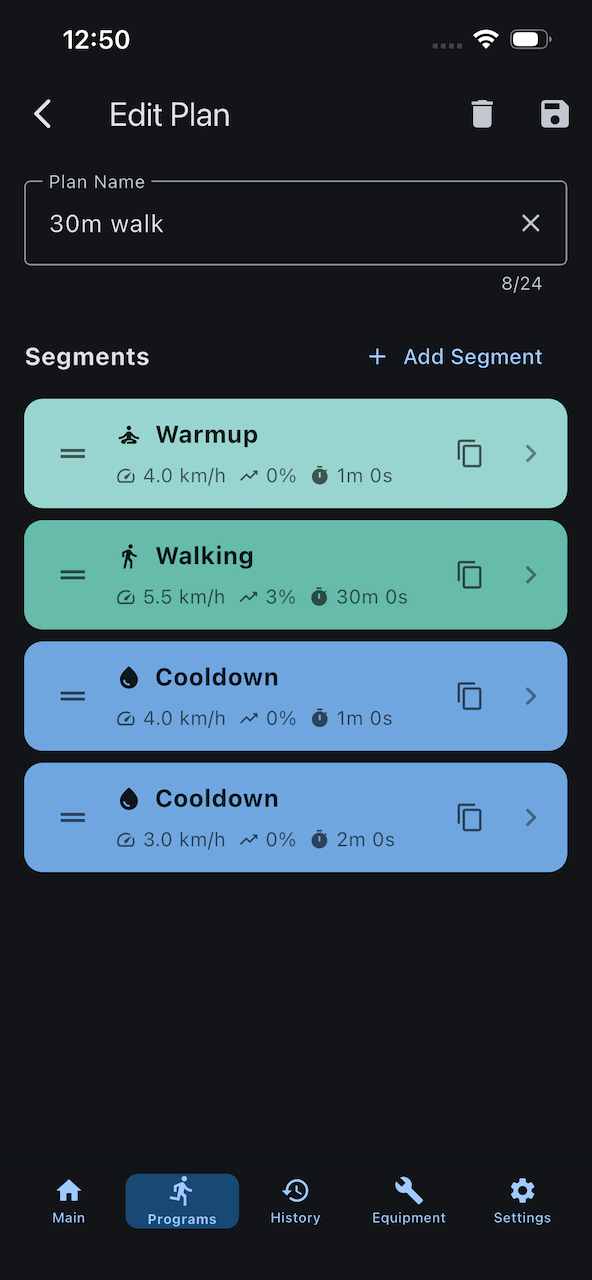
A workout program consists of multiple segments, each with:
- Duration (time) OR Distance (meters)
- Speed (km/h)
- Incline (%)
- Name (e.g., "Warmup", "Sprint", "Cooldown")
- Color and icon for visual identification
The app automatically transitions through segments, adjusting your treadmill settings for you.
Using a Program
Select a Program
Select from the main screen:
- Tap the program dropdown (shows "Free-Run" by default)
- Choose your program
- Press START to begin
During Program Execution
Once started, the program:
- Automatically sets speed and incline for each segment
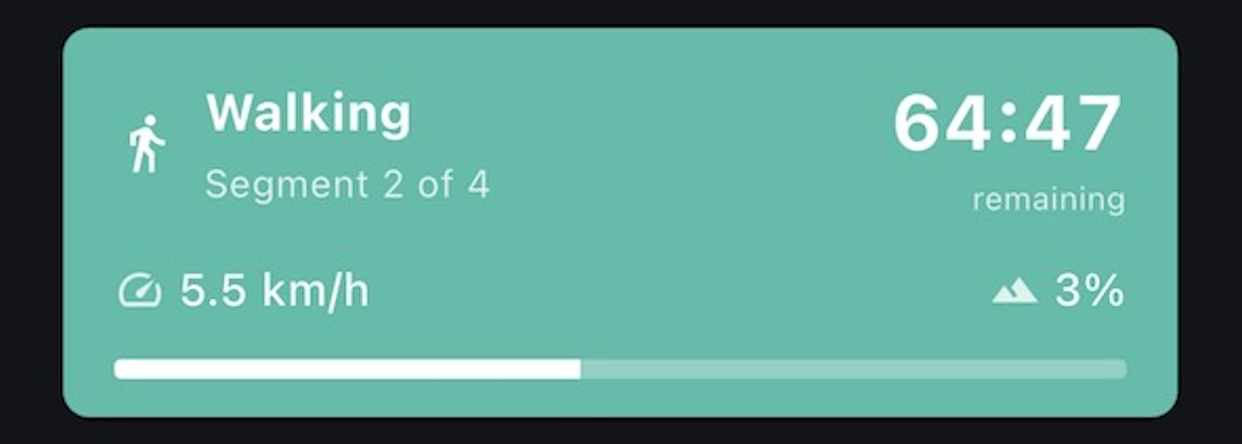
- Displays progress in the program status card
- Shows current segment name and icon
- Counts down time/distance remaining in segment
- Transitions automatically to next segment
- Completes when all segments finished
Program Status Card
The status card shows:
- Current segment name (e.g., "Sprinting")
- Segment icon and color
- Progress indicator (Segment X of Y)
- Countdown (time or distance remaining)
Early Stop
To stop a program before completion:
- Tap STOP button
- Program ends immediately
- Workout saved with partial completion
Partial Programs
Stopping early still saves your workout with all completed segments. The program name is included in history.
Program Categories
Favorites ⭐
Programs you've marked as favorites appear in this auto-expanding section for quick access.
To favorite a program:
- Go to Programs tab
- Tap the program
- Tap the star icon (top right)
To unfavorite:
- Tap the program
- Tap the filled star icon to remove
My Programs 📝
Custom programs you've created. This is where your personalized workouts live.
- Create unlimited custom programs
- Edit anytime (except while running)
- Delete if no longer needed
- Clone to create variations
Cloning Programs
Want to create a variation of one of your programs?
Clone a Program
- Tap the program in Programs tab
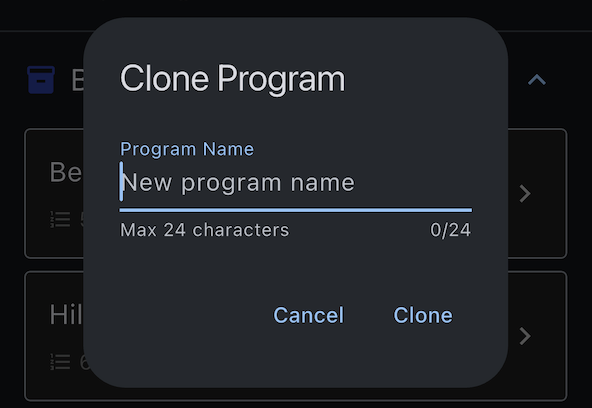
- Tap "Clone" button
- Enter new name for the clone
- Tap "Save"
The cloned program appears in "My Programs" and can be fully edited.
Use Cases for Cloning
- Create variations: Make easy/medium/hard versions of a workout
- Experiment: Try different segment orders or durations
- Backup: Keep the original while tweaking a copy
Program Details View
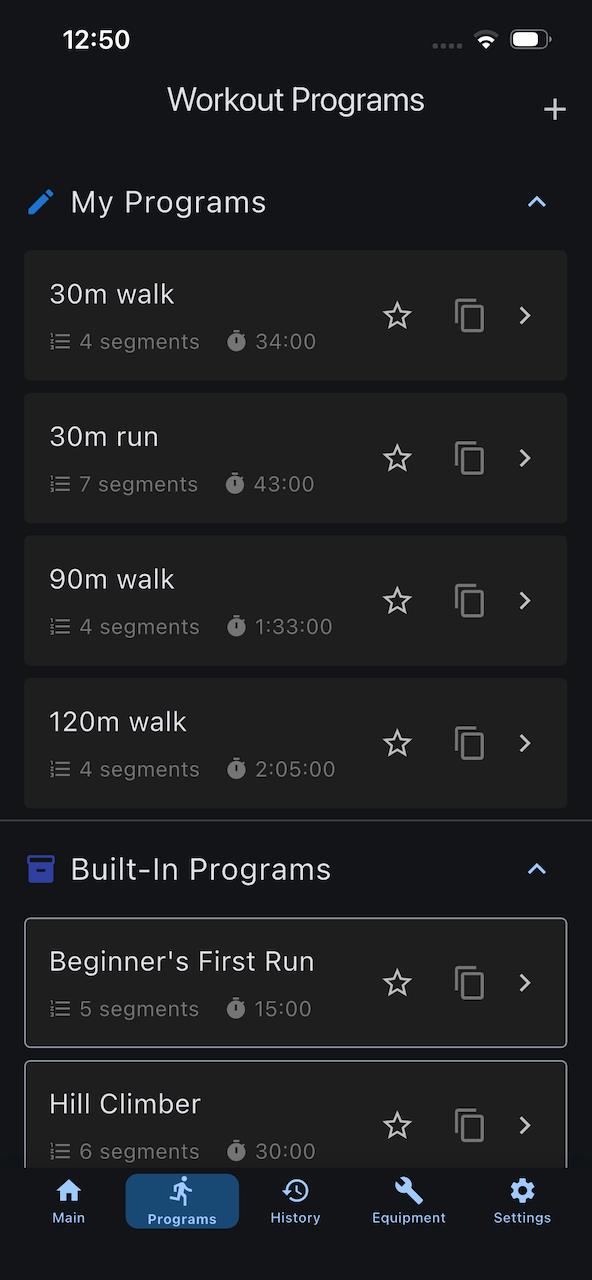
When you tap a program, you see:
- Program name at the top
- Total duration (or "Distance-based" if segments use distance)
- Number of segments
- Action buttons: Select, Edit (if custom), Clone, Favorite
- Segment list: All segments with speeds, inclines, and durations
Segment Types
Time-Based Segments
Run for a specific duration:
- Duration in seconds (shown as MM:SS)
- Speed in km/h
- Incline in %
Example: "Running - 5 minutes at 8 km/h, 2% incline"
Distance-Based Segments
Run for a specific distance:
- Distance in meters (shown as km)
- Speed in km/h
- Incline in %
Example: "Sprint - 400m at 12 km/h, 0% incline"
Mixing Segment Types
You can combine time-based and distance-based segments in the same program for maximum flexibility.
Next Steps
Ready to create your own programs?
- Create custom programs - Build personalized workouts
- Understand program execution - How programs run
- View program history - See past program workouts
Questions? Check the FAQ.