First-Time Setup
Welcome to Treadmill Assistant! This guide will walk you through the initial setup process.
1. Install the App
Download Treadmill Assistant from the App Store (iOS) or Google Play Store (Android).
Requirements
- iOS: iPhone running iOS 14.0 or later
- Android: Android 8.0 (Oreo) or later
- Bluetooth enabled
- FitShow or FTMS-compatible treadmill
2. First Launch
When you first open the app, you'll see the main workout screen. Before you can control your treadmill, you'll need to configure a few settings.
3. Treadmill Control Waiver
If you want to control your treadmill from the app (adjust speed, incline, start/stop), you must accept the liability waiver:
- Tap the Settings tab (gear icon)
- Navigate to Treadmill Control
- Read the liability waiver carefully
- Toggle Enable Treadmill Control ON
- Accept the waiver
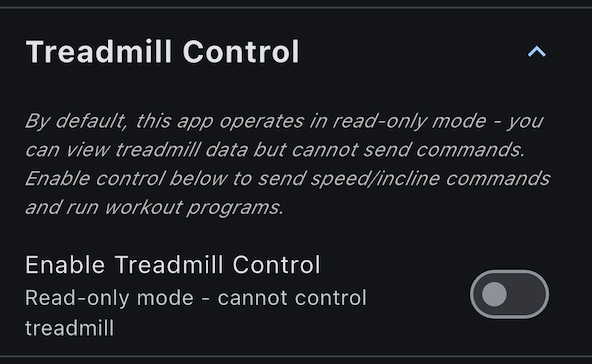
Safety First
The app starts in read-only mode for safety. You can view stats without enabling control. Only enable control when you're ready to actively control the treadmill. Be sure you read through the waiver. It is ultimately your responsibility to control the treadmill. Despite our testing, we can't guarantee every device will act the same way. It is your responsibility to stop using the app with your device if you feel something is off.
4. Health Integration (Optional)
To automatically sync your workouts to a health platform:
- Go to Settings > Apple Health
- Toggle Enable Apple Health Integration ON
- Tap Grant Permissions
- In the Health app dialog, grant the following permissions:
- Workouts (Write) - Required for workout sync
- Weight (Read) - For accurate calorie calculations
- Biological Sex (Read) - For accurate calorie calculations
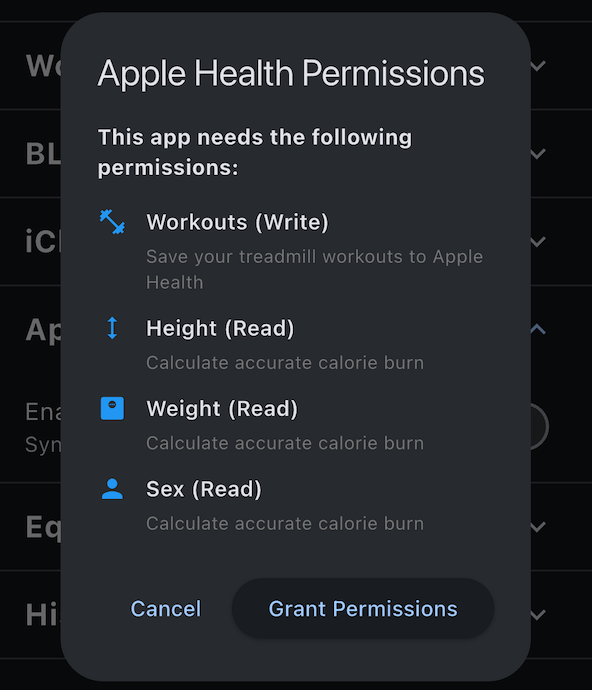
Health Profile
The app imports your weight and biological sex from Apple Health to improve calorie calculations. This data is cached for 24 hours to minimize API calls.
Requires Android 14+
Health Connect integration requires Android 14 (API 34) or later.
- Go to Settings > Health Connect
- Toggle Enable Health Connect Integration ON
- Grant Exercise (Read/Write) permission when prompted
Profile data (date of birth, biological sex, weight) is entered manually in Settings > Health Connect > Health Profile rather than imported from Health Connect.
Auto-Save Workouts
Once Health integration is enabled, your workouts will automatically sync after each session. You can disable auto-save in the Health settings if you prefer manual syncing.
5. Configure Your Preferences
Theme
Choose your preferred appearance:
- Go to Settings > Appearance
- Select:
- Light - Always light mode
- Dark - Always dark mode
- System - Follow device settings (recommended)
Screen Lock
Prevent your screen from turning off during workouts:
- Go to Settings > Workout Screen Lock
- Toggle Keep Screen On During Workouts ON
This automatically activates when a workout is running and deactivates when stopped.
Connection Settings
Configure how the app connects to your treadmill:
- Go to Settings > BLE Connection
- Toggle Auto-Connect to Last Device ON (recommended)
- Choose Device Sort Order:
- Last Used - Shows most recently connected device first
- Alphabetical - Sorts devices A-Z
6. Cloud Sync (Optional)
To backup your workout history and sync across devices:
- Go to Settings > iCloud Sync
- Toggle Enable iCloud Sync ON
- Choose sync frequency (or use manual sync)
Privacy
Your data is stored in your personal iCloud Drive. No third-party servers are involved.
- Go to Settings > Google Drive Sync
- Tap to enable sync
- Sign in with your Google account when prompted
Privacy
Your data is stored in your personal Google Drive App Data folder. No third-party servers are involved.
7. Equipment Maintenance Setup (Optional)
If you want to track treadmill and shoe maintenance:
- Go to Settings > Equipment Maintenance
- Configure intervals:
- Belt Lubrication (be sure to check your treadmill's manual to get the proper value)
- Belt Replacement (same as above, consult your device manual of certified servicing team)
- Running Shoes (depends on the shoes)
- After changing the settings for the first time, Reset current maintenance in the Equipment tab
Next Steps
Now that you've configured the app, you're ready to:
- Connect to your treadmill - Pair via Bluetooth
- Start your first workout - Begin tracking!
Need help? Check the Troubleshooting section if you encounter any issues.