Syncing Workouts
Ensure your workouts are properly saved to your health platform.
Automatic Syncing
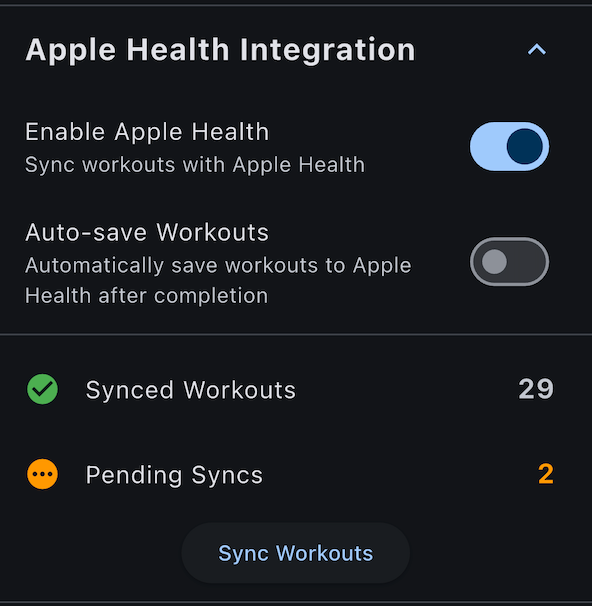
When Auto-Save is enabled, workouts sync automatically after each session.
How Auto-Save Works
- You complete a workout (≥15 seconds)
- Workout saved to app's local database
- App immediately attempts to save to your health platform
- Sync status updates in History
This happens seamlessly in the background - no action needed!
Enabling Auto-Save
- Go to Settings > Apple Health
- Ensure Enable Apple Health Integration is ON
- Toggle Auto-Save Workouts ON (default)
- Go to Settings > Health Connect
- Ensure Enable Health Connect Integration is ON
- Toggle Auto-Save Workouts ON (default)

Manual Syncing
Prefer to control when workouts sync? Use manual mode.
Enable Manual Sync Mode
- Go to Settings > Apple Health
- Toggle Auto-Save Workouts OFF
- Workouts marked as "Pending" until you sync
- Go to Settings > Health Connect
- Toggle Auto-Save Workouts OFF
- Workouts marked as "Pending" until you sync
Sync Pending Workouts
- Go to Settings > Apple Health
- Tap Sync Workouts button
- All pending workouts sync to Health
- Status changes from Pending → Synced
- Go to Settings > Health Connect
- Tap Sync Workouts button
- All pending workouts sync to Health Connect
- Status changes from Pending → Synced
Sync Status Indicators
In the History tab, each workout shows its sync status. Workouts that are unsynced or failed also display a subtle amber background tint on their card, making them easy to spot at a glance without expanding the workout details.
Synced ✅
- Icon: Green checkmark
- Meaning: Workout successfully saved to your health platform
- Action: None needed

Pending ⏳
- Icon: Orange clock
- Meaning: Workout waiting to sync
- Happens when:
- Auto-Save is disabled (manual mode)
- Sync failed but will retry
- Action: Wait for auto-retry or manually sync from Settings

Failed ❌
- Icon: Red error icon
- Meaning: Sync attempt failed
- Details: Tap workout to see error reason
- Action: Fix the issue, then tap "Sync Workouts"
What Gets Synced
Every synced workout includes:
Workout Metadata
- Workout Type: Running
- Start Date/Time: When workout began
- Duration: Total workout time
- Distance: Kilometers covered, allocated per interval
- Calories: Energy burned, allocated per interval
- Steps: Counted across the workout
Per-interval Samples
When the workout has a recorded timeline (premium feature, on by default), the synced entry also includes:
- Heart rate — one sample per second from the connected monitor
- Running pace — one sample per speed/incline interval
- Running power (inferred) — one sample per running/sprinting interval, see below
- Elevation gained (inferred) — per-interval positive ascent, plus the workout total
- Flights climbed (inferred) — derived from total elevation (3 m per flight)
Workout Events
- Segment markers — one event per program segment with its name as the label
- Pause/resume markers — one pause event per pause window
Inferred Metrics
Power, elevation gained, and flights climbed are computed from your treadmill's speed and incline (and your body weight, for power). They are not measured by a sensor. Each can be toggled off in Settings > Inferred metrics. See Inferred Metrics for the full reference.
Power classification
Power uses the Minetti energy-cost model. It only makes sense for running, so the app gates it by segment:
| Segment preset | Power recorded? |
|---|---|
| Running, Sprinting | Always |
| Walking, Warmup, Cooldown | Never |
| Custom, ad-hoc, free-run | Only when speed ≥ threshold (default 9 km/h, configurable in Inferred metrics settings) |
Power requires your body weight to be set in Apple Health / Health Connect. If weight is missing, the Inferred metrics settings show a warning and power is skipped for that workout.
iOS 16 required for power
Apple Health only accepts running-power samples on iOS 16 or later. On iOS 15, power is silently skipped — heart rate, pace, elevation, and flights still sync.
What's NOT Synced
- Program name (not supported by health platforms)
- Detailed speed/incline charts (these stay in Treadmill Assistant's history)
Viewing Synced Workouts
To see your workouts in Apple Health:
- Open Health app
- Tap Browse tab
- Tap Activity
- Tap Workouts
- Find your Treadmill Assistant workouts
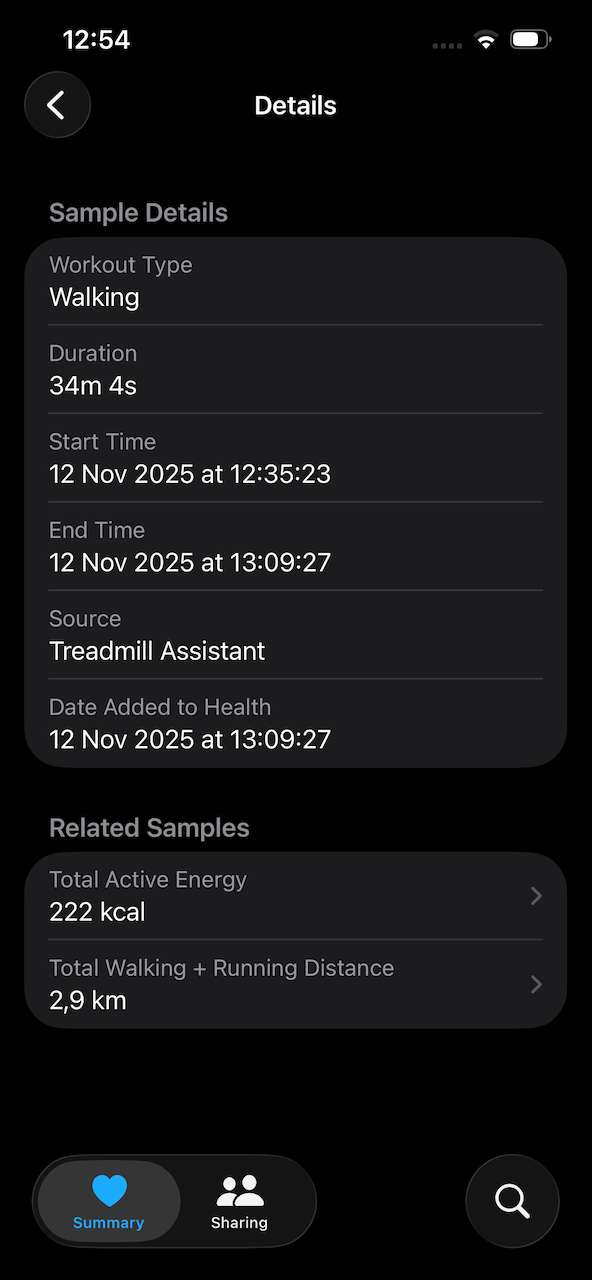
Workouts are labeled as "Running" workouts from Treadmill Assistant.
Related Samples missing
It is normal that when you tap on one of the Related Samples entries, the next screen you get shows no data. That's a feature we might add in the future. It does not impact the calculations and data used by other apps. It's a quirk in how Apple Health integrations and our chosen framework work together.
To see your workouts in Health Connect:
- Open Settings on your device
- Go to Health Connect
- Tap Data and access
- Tap Exercise
- Find your Treadmill Assistant workouts
Workouts are labeled as "Running" exercises from Treadmill Assistant.
Sync Timing
Auto-Save Timing
- Syncs immediately after workout stops
- Usually completes within 1-2 seconds
- Network not required (all local to device)
Manual Sync Timing
- Triggered when you tap "Sync Workouts"
- Syncs all pending workouts at once
- Can take 2-5 seconds for multiple workouts
Sync Retries
If a sync fails:
- App automatically retries on next launch
- Or when you manually trigger sync
- Failed workouts remain pending until successful
Common Sync Issues
Workouts Not Appearing
Possible causes:
- Auto-Save is disabled
- Health permissions not granted
- Sync failed (check status)
Solutions:
- Check sync status in History (expand workout)
- Verify permissions: iOS Settings > Health > Treadmill Assistant
- Enable Auto-Save: Settings > Apple Health
- Manually sync: Settings > Apple Health > Sync Workouts
Solutions:
- Check sync status in History (expand workout)
- Verify permissions: Android Settings > Health Connect > Treadmill Assistant
- Enable Auto-Save: Settings > Health Connect
- Manually sync: Settings > Health Connect > Sync Workouts
Sync Status Stuck on Pending
Problem: Workouts remain orange "pending" for long time
Solutions:
- Check Health permissions are granted
- Try manual sync from Settings
- Restart Treadmill Assistant app
- Check iOS Health app for restrictions
Solutions:
- Check Health Connect permissions are granted
- Try manual sync from Settings
- Restart Treadmill Assistant app
- Verify Health Connect is installed and running
Sync Failed with Error
Problem: Red error icon with message
Common errors:
| Error | Meaning | Solution |
|---|---|---|
| "Permission denied" | Health write permission revoked | Grant in iOS Settings > Health |
| "Health not available" | Health app disabled | Check Screen Time restrictions |
| "Invalid workout data" | Workout data corrupted | Delete and re-record workout |
Common errors:
| Error | Meaning | Solution |
|---|---|---|
| "Permission denied" | Health Connect permission revoked | Grant in Android Settings > Health Connect |
| "Health Connect not available" | Requires Android 14+ | Check your Android version |
| "Invalid workout data" | Workout data corrupted | Delete and re-record workout |
Deleting Synced Workouts
When you delete a workout from Treadmill Assistant:
Delete from App Only
- Removes from Treadmill Assistant History
- Keeps in your health platform
- Workout data preserved
Delete from App & Health Platform
- Removes from Treadmill Assistant
- Removes from Apple Health / Health Connect
- Completely deleted from both
- Cannot be recovered
Choose carefully based on whether you want to keep a backup in your health platform.
Cloud Sync vs Health Sync
Cloud sync and health sync are separate:
Cloud Sync (iCloud / Google Drive)
- Syncs Treadmill Assistant data across devices
- Handles workout history, programs, equipment tracking
Health Sync (Apple Health / Health Connect)
- Device-specific health data
- Each device has its own health database
- Workouts sync to the health platform on the device where completed
Bulk Syncing
Sync All Pending
To sync multiple pending workouts:
- Go to Settings > Apple Health
- Tap Sync Workouts
- All pending workouts sync at once
- Go to Settings > Health Connect
- Tap Sync Workouts
- All pending workouts sync at once
After Re-Enabling Health
If you disabled and re-enabled health integration:
- Past workouts may show as "Pending"
- Tap "Sync Workouts" to sync them all
- Or they'll sync gradually over time
Backfill Old Workouts
If you recorded workouts before enabling health integration, those workouts won't have been synced. The backfill feature lets you sync these older workouts retroactively.
Identifying Unsynced Workouts
Unsynced workouts are easy to find in History:
- Amber-tinted cards — workouts that have never been synced show a subtle amber background, so they stand out at a glance
- "Unsynced" badge — expand any amber-tinted workout to see the "Unsynced" status badge
Tip
If you recently enabled health integration and see many amber cards in your history, that's expected. Use the bulk backfill to sync them all at once.
How to Backfill
Auto-Offer on First Enable
When you first enable health integration, the app detects any existing unsynced workouts and offers to backfill them immediately via a dialog prompt. You can choose to sync now or skip (you can always do it later from Settings).
Bulk Backfill (All Unsynced Workouts)
- Go to Settings > Apple Health
- If you have unsynced old workouts, an amber Unsynced Old Workouts counter appears
- Tap the Backfill Old Workouts button
- All unsynced workouts are synced to Apple Health
- A progress indicator shows how many workouts have been processed
- Go to Settings > Health Connect
- If you have unsynced old workouts, an amber Unsynced Old Workouts counter appears
- Tap the Backfill Old Workouts button
- All unsynced workouts are synced to Health Connect
- A progress indicator shows how many workouts have been processed
Individual Workout Backfill
- Open History
- Expand the workout you want to sync
- Tap the Unsynced badge
- That single workout syncs to your health platform
Progress Tracking
During a bulk backfill, you'll see a progress count showing:
- How many workouts have been processed
- How many succeeded or failed
- When the backfill is complete
Duplicate Prevention
Backfill is safe to run multiple times. Before writing, the app checks for existing data to prevent duplicate entries. If a workout was already synced (by a previous backfill attempt or from another device), it is skipped automatically.
Info
The duplicate-prevention check uses the same reconciliation logic as the normal sync retry flow, so you can trust that no duplicate workouts will appear.
What Happens If Interrupted
If a backfill is interrupted (app closed, phone locked, etc.):
- Partial progress is saved — workouts that already synced stay synced
- Safe to resume — just tap Backfill again; already-synced workouts are skipped
- No data is lost or corrupted
Re-syncing Older Workouts to the Richer Format
Workouts that synced under an older version of the app only contain the basic metadata (duration, distance, calories). If you've recorded a timeline for those workouts, you can re-sync them so the entries in your health platform also include heart rate, pace, power, elevation, and segment markers.
Per-Workout Re-sync
- Open History
- Expand a workout that was synced under the old format. The status badge reads "Synced – Tap to re-sync with richer data".
- Tap the badge. The app deletes the existing entry from your health platform and re-writes it with the richer payload.
If a workout has no recorded timeline, the badge stays as plain "Synced" — there's no extra data to add, so no re-sync is offered.
Bulk Re-sync
When you have multiple eligible workouts:
- Go to Settings > Apple Health
- The Re-sync N workouts to richer format row shows the count
- Tap Re-sync now and confirm
- A progress dialog tracks the run
- Go to Settings > Health Connect
- The Re-sync N workouts to richer format row shows the count
- Tap Re-sync now and confirm
- A progress dialog tracks the run
The bulk run is rate-limited so it doesn't flood the health platform. If it's interrupted (app closed, phone locked), the next run resumes where it left off.
Replaces, does not duplicate
Re-sync deletes each old entry and writes a fresh one with the same start time. Your health platform shows the richer version — there are no duplicate workouts.
Sync Performance
Sync Speed
- Single workout: <1 second
- 10 workouts: 2-3 seconds
- 100 workouts: 10-15 seconds
Battery Impact
- Minimal battery usage
- Health syncs are local (no network)
- No significant power drain
Privacy Considerations
Data Sharing
- Health data stays on your device
- Protected by your device security
- No data sent to external servers
Third-Party Access
Other apps can read your Treadmill Assistant workouts only if you explicitly grant them health read permissions on your device.
Next Steps
- Health integration setup - Configure initial permissions
- Heart rate tracking - Include HR in synced workouts
- View your history - Monitor sync status
Syncing not working? Check Sync Troubleshooting.