Connection Settings
Configure how Treadmill Assistant connects to your treadmill.
Accessing Connection Settings
- Go to Settings tab (gear icon)
- Find BLE Connection section
- Configure auto-connect and device sorting
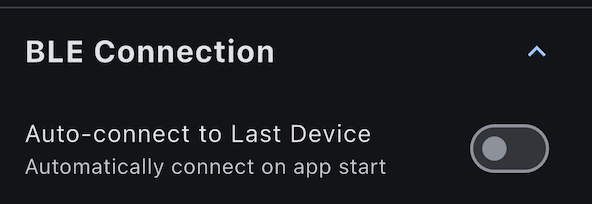
Auto-Connect
Automatically connect to your last-used treadmill when the app launches.
How It Works
With auto-connect enabled:
- Open the app
- App searches for your last-connected treadmill
- Automatically connects when found (3-5 seconds)
- Ready to work out without manual connection
Enabling Auto-Connect
- Go to Settings > BLE Connection
- Toggle Auto-Connect to Last Device ON
- Next time you open app, it auto-connects
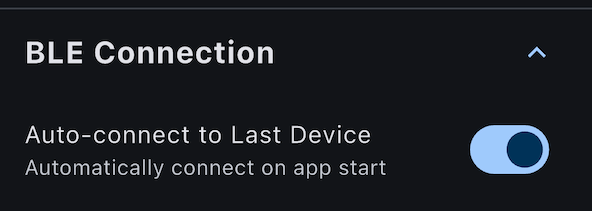
When Auto-Connect Works Best
Ideal scenarios:
- You always use the same treadmill (home setup)
- Treadmill is nearby when opening app
- You want fastest possible startup
Less ideal scenarios:
- You use multiple treadmills (gym, home, etc.)
- Treadmill is often off when opening app
- You prefer manual device selection
Auto-Connect Behavior
If last treadmill found:
- Connects automatically
- Connection usually completes in 3-5 seconds
- Main screen shows connected state
If last treadmill not found:
- App searches for 10-15 seconds
- Times out and shows "Connect" button
- Tap "Connect" to manually scan and choose device
Disabling Auto-Connect
To manually select treadmill each time:
- Go to Settings > BLE Connection
- Toggle Auto-Connect to Last Device OFF
- App will show "Connect" button on startup
- Tap to scan and select treadmill manually
Device Sort Order
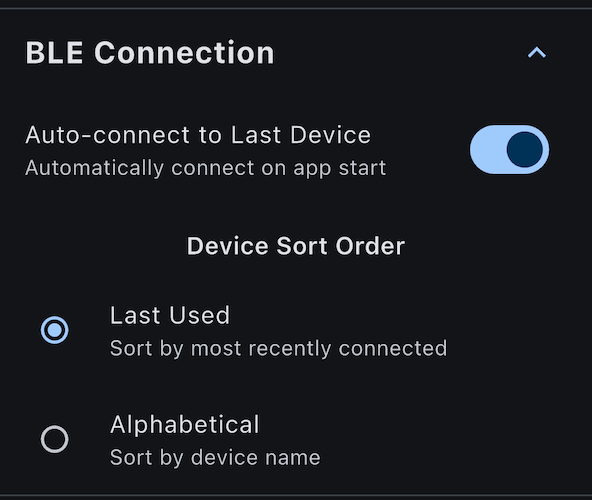
Choose how discovered treadmills are sorted in the device list.
Sort Options
Last Used (Default)
- Most recently connected treadmill appears first
- Others sorted by signal strength
- Best for: Regular treadmill users
Alphabetical
- Devices sorted A-Z by name
- Consistent order every time
- Best for: Multiple treadmills with memorable names
Changing Sort Order
- Go to Settings > BLE Connection
- Find Device Sort Order
- Select:
- Last Used (recommended)
- Alphabetical
- New scans use selected order
When to Use Each
Use "Last Used" when:
- You primarily use one treadmill
- You want your regular device at the top
- Signal strength matters (closer devices higher)
Use "Alphabetical" when:
- You use multiple treadmills regularly
- Treadmills have clear names (e.g., "Treadmill-1", "Treadmill-2")
- You prefer consistent, predictable ordering
Connection History
The app automatically remembers all devices you've connected to.
What's Remembered
For each device:
- Device name (e.g., "FS-7B4AC5")
- Device Bluetooth ID (unique identifier)
- Last connection timestamp
- Connection success/failure history
Why This Matters
- Auto-connect uses last connected device
- "Last Used" sorting relies on connection history
- Quick reconnection to known devices
Clearing History
Currently no way to manually clear connection history.
To start fresh:
- Reinstall the app (loses all data)
- Or just ignore old devices (they won't appear in scans if not nearby)
Bluetooth Permissions
Required Permission
Treadmill Assistant needs Bluetooth permission to scan and connect.
Granting Permission
On first launch:
- App requests Bluetooth permission
- Tap "Allow" to grant
- Without permission, app cannot connect
If Permission Denied
If you denied Bluetooth permission:
- Open iOS Settings
- Scroll to Treadmill Assistant
- Toggle Bluetooth ON
- Return to app
Connection Range
Bluetooth Range
Typical Bluetooth Low Energy (BLE) range:
- Optimal: Within 10 feet (3 meters)
- Maximum: Up to 30 feet (10 meters) with line of sight
- Obstacles: Walls, metal, and interference reduce range
Improving Connection
For best results:
- Keep phone near treadmill (within 10 feet)
- Remove obstacles between phone and treadmill
- Avoid interference from microwaves, Wi-Fi routers
- Keep phone charged (low battery affects Bluetooth)
Connection Speed
Factors Affecting Speed
Connection time varies based on:
- Treadmill state: Idle treadmills connect faster
- Bluetooth traffic: Fewer devices = faster connection
- Distance: Closer = faster
- Auto-connect: Slightly slower than manual (searches first)
Typical Times
- Manual connection: 2-5 seconds
- Auto-connect (found): 3-7 seconds
- Auto-connect (not found): 10-15 seconds timeout
Multiple Devices
Using Multiple Treadmills
If you use different treadmills:
With auto-connect ON:
- App connects to last-used treadmill
- May not be the one you're near
- Manually disconnect and select correct treadmill
With auto-connect OFF:
- Manually select which treadmill each time
- More control, slightly slower startup
Recommendation: Disable auto-connect if using multiple treadmills regularly.
Switching Treadmills
To switch to a different treadmill:
- Disconnect from current treadmill by turning it off.
- Go to Main Screen to get access to connection details
- Tap "Search" button or
- Select new treadmill from scan results
Offline Mode
Using App Without Connection
Can access history without treadmill:
- On connection screen, tap "Offline Mode"
- Navigate app freely
- Cannot start workouts in offline mode
- Can view/delete past workouts
Useful for:
- Reviewing history at home
- Managing workouts
- Checking stats
Troubleshooting Connection Settings
Auto-Connect Not Working
Problem: App doesn't auto-connect to treadmill
Solutions:
- Verify auto-connect is enabled
- Ensure treadmill is powered on before opening app
- Check treadmill is within Bluetooth range
- Wait 15 seconds for timeout, then connect manually
Wrong Treadmill Auto-Connects
Problem: Connects to wrong treadmill (e.g., neighbor's)
Solutions:
- Disable auto-connect
- Manually select your treadmill each time
- Move other treadmills further away or power them off
Cannot Find Treadmill
Problem: Treadmill never appears in scan
Solutions:
- See Connection Troubleshooting
- Verify treadmill Bluetooth is enabled
- Check Bluetooth permissions granted
- Restart treadmill and app
Device List Empty
Problem: Scan finds no devices
Solutions:
- Check phone Bluetooth is enabled (Settings > Bluetooth)
- Grant Bluetooth permissions to app
- Ensure treadmill powered on and idle
- Move closer to treadmill
Next Steps
- Connect your treadmill - Step-by-step connection guide
- Troubleshoot connections - Solve connection issues
- Configure treadmill control - Enable/disable control
Connection not working? See Connection Troubleshooting.