Health Integration Setup
Configure health integration to automatically sync your workouts.
Why Use Apple Health?
Benefits of enabling Health integration:
- Automatic Workout Sync - Every workout saved to Health
- Centralized Data - All fitness data in one place
- Third-Party Apps - Share data with other fitness apps
- Long-Term Storage - Health preserves data permanently
- Better Calorie Accuracy - Uses your actual body metrics
Enabling Apple Health
Step 1: Open Settings
- Tap Settings tab (gear icon)
- Scroll to Apple Health section
- Tap to open Health settings
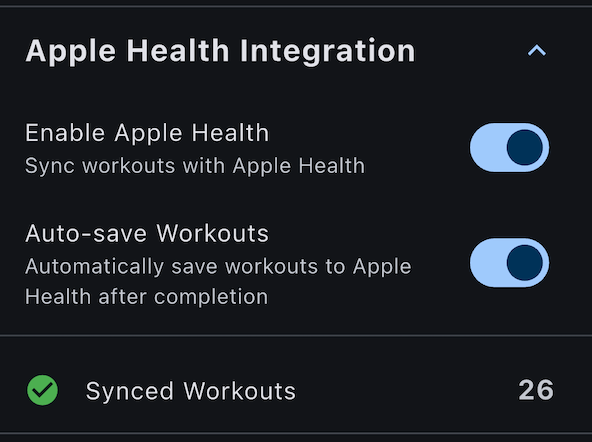
Step 2: Enable Integration
- Toggle Enable Apple Health Integration ON
- The Grant Permissions button becomes active
Step 3: Grant Permissions
- Tap Grant Permissions button
- Apple Health permission dialog appears
- Review requested permissions
- Toggle ON the permissions you want to grant
- Tap Allow in top right
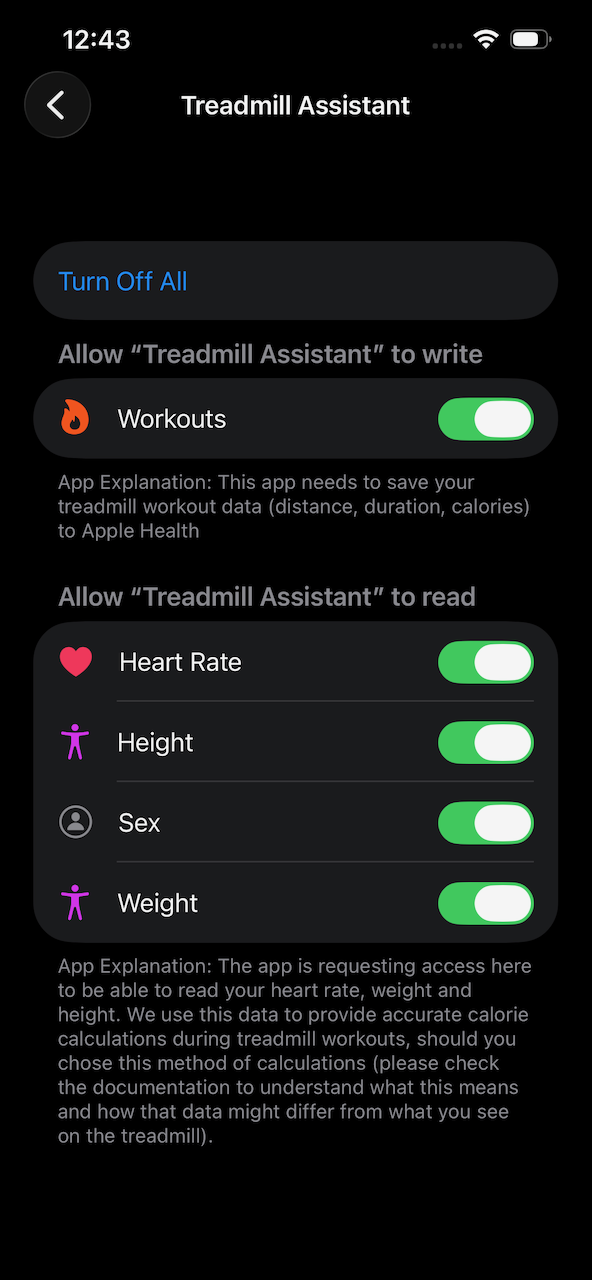
Requested Permissions
Treadmill Assistant requests the following:
Workout Data (Write) - Required for Sync
- Purpose: Save completed workouts to Apple Health
- What's written:
- Workout (running) — duration, distance, calories
- Heart rate — per-second samples from the connected monitor
- Running speed — per-interval pace samples
- Running power — per-interval power, computed from speed/incline/weight (iOS 16+ only)
- Elevation gained — per-interval positive ascent and the workout total
- Flights climbed — derived from total elevation
- Recommendation: Grant all — anything you skip is silently omitted from the synced workout.
Weight (Read) - Optional
- Purpose: Calculate calories more accurately and compute running power
- What's read: Your current weight from Health
- Recommendation: Grant — also required for running power.
Biological Sex (Read) - Optional
- Purpose: Calculate calories more accurately
- What's read: Male/Female from Health profile
- Recommendation: Grant for better accuracy
iOS 16 required for running power
Apple Health only accepts running-power samples on iOS 16 or later. On iOS 15, power is silently skipped — heart rate, pace, elevation, and flights still sync.
Permission Levels
You can choose which permissions to grant:
Minimal Setup (Workouts Only)
- Grant: Workouts (Write)
- Skip: Weight, Sex
- Result: Workouts sync, but calories less accurate
Recommended Setup (All Permissions)
- Grant: Workouts (Write)
- Grant: Weight (Read)
- Grant: Biological Sex (Read)
- Result: Full integration, accurate calories
No Integration
- Don't enable Apple Health
- Result: App works fine, data stored locally only
Changing Permissions Later
Revoke or Grant Permissions
If you want to change permissions after initial setup:
- Open iPhone Settings app (not Treadmill Assistant)
- Scroll to Health
- Tap Data Access & Devices
- Find and tap Treadmill Assistant
- Toggle permissions ON or OFF
- Return to Treadmill Assistant
Changes Take Effect Immediately
- No need to restart app
- New workouts use updated permissions
- Past workouts unaffected
Re-granting After App Updates
When a new version of Treadmill Assistant adds permissions for new data types (e.g. running power, elevation, flights climbed), iOS does not re-prompt you automatically. The app detects this and shows a Re-grant permissions button at the top of the Apple Health settings section.
- Tap Re-grant permissions
- The Apple Health permission dialog appears with the new types pre-selected
- Toggle them ON and tap Allow
If you've already dismissed the prompt before for a given type, iOS won't show it again — use the Manage permissions in Apple Health link below the button to open Apple Health directly and adjust them there.
Health Profile Setup
For accurate calorie calculations, set up your Health profile:
Update Your Profile
- Open Health app (Apple's)
- Tap your profile picture (top right)
- Tap Health Details
- Enter/update:
- Date of Birth
- Biological Sex
- Weight
Keep Weight Updated
Weight affects calorie calculations significantly:
- Update weight regularly (weekly or monthly)
- Treadmill Assistant reads latest weight automatically
- More accurate calories in all workouts
Viewing Health Profile in App
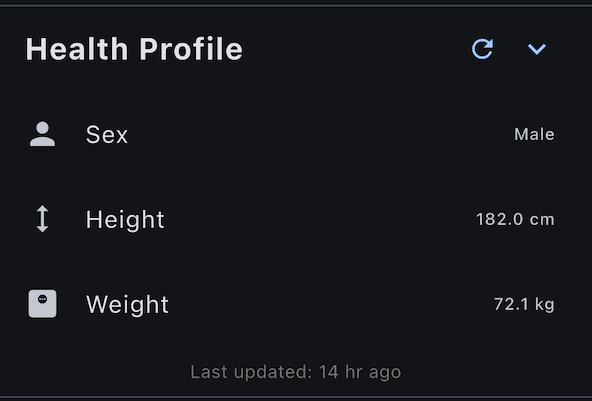
Treadmill Assistant displays your Health profile:
- Go to Settings > Apple Health
- Scroll to Health Profile section
- View:
- Weight
- Biological Sex
- Last updated time
Profile Caching
- Profile data cached for 24 hours
- Reduces API calls to Health app
- Tap Refresh Profile arrow to update manually
Auto-Save Workouts
Enable Auto-Save
When Health integration is on:
- Auto-Save Workouts toggle appears
- Toggle ON (default)
- Workouts sync automatically after completion
Manual Sync Mode
If you prefer manual control:
- Toggle Auto-Save Workouts OFF
- Workouts marked as "Pending" in history
- Sync manually from Settings (see Syncing Workouts)
Recommended: Auto-Save ON
Auto-save ensures you never forget to sync. It's set and forget!
Disabling Apple Health
To Disable Integration
- Go to Settings > Apple Health
- Toggle Enable Apple Health Integration OFF
- Choose what happens to synced workouts:
- Keep in Health - Past workouts remain in Health
- Remove from Health - Delete all synced workouts from Health
Removal is Permanent
If you choose "Remove from Health", workouts cannot be recovered.
After Disabling
- New workouts won't sync
- App continues to work normally
- All data stored locally
- Can re-enable anytime
Troubleshooting Setup
"Grant Permissions" Button Grayed Out
Problem: Can't tap Grant Permissions
Solution:
- Ensure Enable Apple Health Integration is toggled ON
- Try toggling OFF then ON again
- Restart app
Permission Dialog Doesn't Appear
Problem: Tapping "Grant Permissions" does nothing
Solution:
- Close and reopen app
- Check that Health app is installed (comes with iOS)
- Restart iPhone if problem persists
Permissions Not Saving
Problem: Granted permissions but they don't stick
Solution:
- Check Health app restrictions (Settings > Screen Time)
- Ensure Health app data is not restricted
- Try granting permissions via iOS Settings instead
Profile Shows "Not Available"
Problem: Health profile doesn't display in app
Solution:
- Open Health app and complete your profile
- Grant Weight and Sex permissions
- Tap "Refresh Profile" in app
- Wait a few seconds for data to load
Privacy & Security
What Data is Shared
Treadmill Assistant only accesses:
- Data you explicitly grant permission for
- No access to other Health data
- Cannot write data you don't authorize
Data Storage
- Health data stays in Apple Health
- Treadmill Assistant caches profile for 24 hours
- No data sent to external servers
- You control all permissions
Revoking Access
You can revoke permissions anytime:
- Via iOS Settings > Health
- Treadmill Assistant respects revocations immediately
- Your Health data remains yours
Why Use Health Connect?
Benefits of enabling Health Connect integration:
- Automatic Workout Sync - Every workout saved to Health Connect
- Centralized Data - All fitness data in one place
- Third-Party Apps - Share data with other fitness apps
- Better Calorie Accuracy - Uses your actual body metrics
Android 14 Required
Health Connect integration requires Android 14 (API 34) or later. On older Android versions, this feature is not available.
Enabling Health Connect
Step 1: Open Settings
- Tap Settings tab (gear icon)
- Scroll to Health Connect section
- Tap to open Health Connect settings
Step 2: Enable Integration
- Toggle Enable Health Connect Integration ON
- The app will request permissions from Health Connect
Step 3: Grant Permissions
- Health Connect permission dialog appears
- Grant the requested permissions (see below)
- Confirm your selection
Requested Permissions
The app requests write access to the following Health Connect record types:
- Exercise sessions — the workout entry itself (duration, type)
- Distance, Total calories burned, Steps — workout totals
- Heart rate — per-second samples from the connected monitor
- Speed — per-interval running speed
- Power — per-interval running power, computed from speed/incline/weight
- Elevation gained — per-interval ascent and workout total
- Floors climbed — derived from total elevation
Grant all of them for a complete synced entry. Anything you decline is silently omitted from the workout in Health Connect.
Health Profile
Unlike iOS, profile data is entered manually in the app rather than read from Health Connect.
Setting Up Your Profile
- Go to Settings > Health Connect
- Scroll to Health Profile section
- Enter your details:
- Date of Birth - Use the date picker
- Biological Sex - Select from the dropdown (includes a "Would rather not say" option)
- Weight - Enter manually
Accuracy Note
Providing accurate profile data improves calorie calculations. If you select "Would rather not say" for biological sex, the app uses a general estimate.
Keep Weight Updated
Weight affects calorie calculations significantly:
- Update weight regularly (weekly or monthly)
- More accurate calories in all workouts
Auto-Save Workouts
When Health Connect integration is enabled:
- Auto-Save Workouts toggle appears
- Toggle ON (default)
- Workouts sync automatically after completion
Auto-save works the same way as on iOS. You can also disable it and sync workouts manually.
Changing Permissions Later
To change Health Connect permissions after initial setup:
- Open Android Settings
- Go to Apps
- Find Health Connect
- Tap Treadmill Assistant
- Toggle permissions ON or OFF
Changes take effect immediately. No need to restart the app.
Re-granting After App Updates
When a new version of Treadmill Assistant adds permissions for new data types (e.g. running power, elevation, floors climbed), Health Connect does not re-prompt you automatically. The app detects this and shows a Re-grant permissions button at the top of the Health Connect settings section — tap it to open the Health Connect dialog with the new types selected.
Disabling Health Connect
- Go to Settings > Health Connect in the app
- Toggle Enable Health Connect Integration OFF
- New workouts won't sync
- App continues to work normally
- Can re-enable anytime
Troubleshooting
Health Connect Option Not Available
Problem: Health Connect section doesn't appear in Settings
Solution:
- Verify your device is running Android 14 or later
- Check that Health Connect is installed (available from Google Play)
Permissions Not Working
Problem: Workouts aren't syncing despite enabling integration
Solution:
- Open Android Settings > Apps > Health Connect
- Verify Treadmill Assistant has Exercise permission granted
- Try toggling integration OFF then ON again
- Restart the app
Privacy & Security
What Data is Shared
Treadmill Assistant only accesses:
- Exercise data you explicitly grant permission for
- No access to other Health Connect data
Data Storage
- Health data stays in Health Connect on your device
- No data sent to external servers
- You control all permissions
Next Steps
- Sync your workouts - Ensure workouts save to Health
- Track heart rate - Monitor HR during workouts
- View your history - See synced workouts
Having setup issues? Check Syncing Troubleshooting.