Heart Rate Monitor
Connect an external Bluetooth heart rate monitor for more accurate HR tracking during workouts.
What is External HR Monitor Support?
Treadmill Assistant can connect to external heart rate monitors that use the standard Bluetooth Low Energy (BLE) Heart Rate Profile. This gives you:
- More accurate readings - Chest straps and arm bands are more reliable than treadmill grip sensors
- Continuous monitoring - No need to hold treadmill handles
- Real-time HR zones - See which training zone you're in during workouts
- HR-based calorie estimation - With Premium, get personalized calorie estimates based on your actual heart rate (see Heart Rate and Calorie Estimation)
Supported Devices
Any heart rate monitor that uses the standard BLE Heart Rate Profile will work with Treadmill Assistant. This includes:
- Chest straps - Most accurate option, ideal for serious training
- Arm bands - More comfortable for some users
- Fitness watches - Some models can broadcast HR over BLE
If your device advertises itself as a Bluetooth heart rate monitor and works with other fitness apps, it should work with Treadmill Assistant.
Connecting Your HR Monitor
First-Time Setup
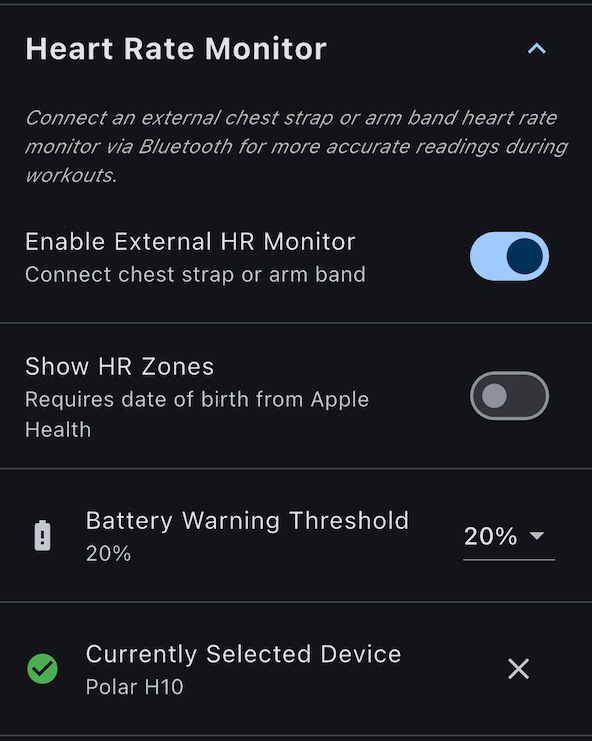
- Put on your HR monitor and ensure it's active
- Go to Settings tab (gear icon)
- Find Heart Rate Monitor section
- Tap Select Device or Scan for Monitors
- Wait for your device to appear in the list (5-10 seconds)
- Tap your device to select it
- Connection is saved for future use
Auto-Connect
Once a device is selected:
- App automatically connects to your HR monitor when you connect to the treadmill
- No need to manually connect each time
- HR data appears on the main screen immediately
Switching Devices
To use a different HR monitor:
- Go to Settings > Heart Rate Monitor
- Tap Change Device or select from device history
- Your new device becomes the default
HR Source Priority
When multiple HR sources are available:
| Priority | Source | Example |
|---|---|---|
| 1 (Highest) | External BLE monitor | Chest strap, arm band |
| 2 | Wireless earbuds (iOS) | AirPods Pro 3, supported Beats |
| 3 (Lowest) | Treadmill grip sensors | Hand grip sensors |
The app automatically uses the highest-priority source that has data. If a higher-priority source stops sending data (for example a chest strap drops out), the app falls back to the next available source.
Wireless earbuds appear only on iOS with Live workout session enabled — see Wireless earbud heart rate below.
Understanding HR Display
Source Indicator
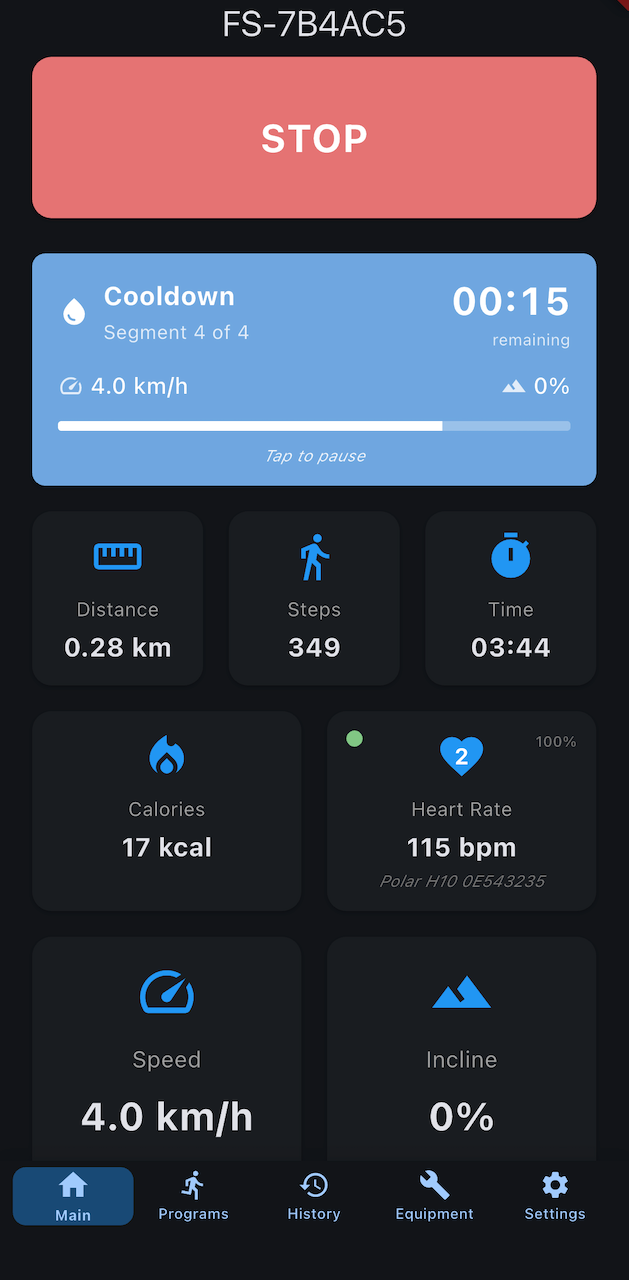
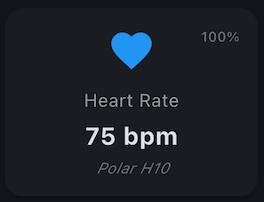
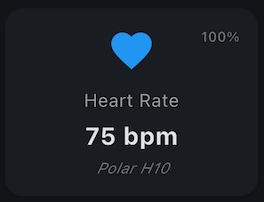
The heart rate card shows where your HR data comes from:
- Device name (e.g., "Polar H10") - External monitor connected
- Earbud name (e.g., "AirPods Pro") - Wireless earbud heart rate (iOS); shows "Live" briefly until the earbud name resolves
- "Treadmill" - Using treadmill grip sensors
Connection Status Indicator
When an external HR monitor is configured, a colored status dot appears on the HR card showing the current connection state:
| Color | Status | Meaning |
|---|---|---|
| 🟢 Green | Connected | Monitor connected and receiving heart rate data |
| 🟠 Orange | Connecting | Monitor is connecting or reconnecting |
| 🔴 Red | Disconnected | Monitor configured but not currently connected |
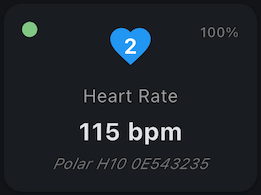
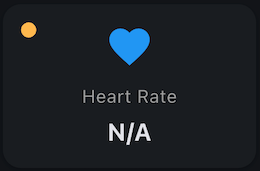

The status indicator only appears when: - An external HR monitor is configured in Settings - The treadmill is connected
If no HR monitor is configured, no status dot is shown.
Tap to Toggle Connection
You can quickly disconnect or reconnect your HR monitor by tapping the HR card during a workout:
- Tap when connected (green) - Disconnects the HR monitor. The HR reading resets to "N/A" and the status dot turns red.
- Tap when disconnected (red) - Initiates reconnection. The status dot turns orange while connecting, then green once connected.
This is useful when: - You want to temporarily disable HR monitoring without removing your device - Your HR monitor loses connection and you want to force a reconnect - You're switching between treadmill grip sensors and external monitor mid-workout
Battery Level
For external monitors that report battery level:
- Battery percentage shown on HR card
- Low battery warning at 20% - Plan to charge soon
HR Zones
Requires Age Data
HR zones require age data. On iOS, enable Apple Health with Date of Birth permission. On Android, enter your date of birth in Settings > Health Connect > Health Profile.
When age data is available, the app calculates your HR training zones.
Zone Calculation
Maximum HR is estimated using the standard formula:
Max HR = 220 - Age
The 5 Zones
| Zone | % of Max HR | Name | Purpose |
|---|---|---|---|
| 1 | 50-60% | Recovery | Warmup, cooldown, easy days |
| 2 | 60-70% | Fat Burn | Base fitness, fat burning |
| 3 | 70-80% | Aerobic | Endurance building |
| 4 | 80-90% | Threshold | Performance improvement |
| 5 | 90-100% | Max | VO2 max, sprints |
Zone Display
During workouts, your current zone appears on the HR card:
- Zone number and name displayed
- Color-coded background indicates intensity
- Updates in real-time as HR changes
Zone Segment Tracking
The app tracks time spent in each zone throughout your workout:
- Zone segments are recorded as you move between zones
- Continuous monitoring with external HR monitors provides more accurate zone tracking
- Workout history shows a timeline visualization of your zone progression
- Pause gaps appear as gray segments in the timeline
Using an external HR monitor improves zone tracking accuracy because:
- No need to hold treadmill handles
- Continuous readings without interruption
- More accurate HR = more accurate zone calculations
Setting Up Zones
To enable HR zone display:
- Go to Settings > Health Profile
- Enter your date of birth (or age)
- Zones will calculate automatically
Device History
The app remembers HR monitors you've used:
- Quick switching between devices without re-scanning
- Most recently used devices appear first
- Useful if you have multiple monitors (gym vs home)
Wireless Earbud Heart Rate (iOS)
iOS 26 or later · Premium · Apple Health
iOS-only. Requires iOS 26 or later, Premium, and Apple Health turned on.
The Heart Rate Monitor section includes two iOS-only settings that let supported Apple earbuds (AirPods Pro 3, supported Beats) supply your heart rate:
- Live workout session - Uses your earbuds' heart rate during workouts. It shows live on the Heart Rate card and is recorded in Apple Health. Off by default.
- Start without waiting for monitor - Appears once Live workout session is on. Lets workouts start straight away on your earbuds without the "monitor not connected" prompt; your Bluetooth monitor still connects in the background if it's on and takes over when it does.
For the full walkthrough — including how to grant Apple Health Heart Rate access if earbud heart rate isn't showing up — see Wireless Earbud Heart Rate.
Troubleshooting HR Monitor Issues
Earbud Heart Rate Not Appearing (iOS)
Problem: Live workout session is on, but earbud heart rate doesn't show in the app or Apple Health — and the Heart Rate permission may not even be listed in the Health app.
Cause: The app needs Heart Rate (read) access in Apple Health. If you enabled Apple Health in an older app version, that access may never have been requested.
Solutions:
- Tap Update health permissions in Settings > Heart Rate Monitor (or Settings > Apple Health), then allow Heart Rate (and Workout) in the Apple Health sheet.
- If no sheet appears (iOS only asks once per data type), grant it manually: Health app > profile picture > Privacy > Apps > Treadmill Assistant > turn on Heart Rate.
- Confirm you're on iOS 26 or later with Premium and Apple Health enabled.
Monitor Not Found in Scan
Problem: Your HR monitor doesn't appear in the device list
Solutions:
- Ensure monitor is worn and active (chest straps need skin contact)
- Check that Bluetooth is enabled on your phone
- Move closer to your phone (within 10 feet)
- Try wetting the sensor electrodes (for chest straps)
- Restart the HR monitor
- Close and reopen the app
HR Data Not Updating
Problem: Connected but no heart rate showing
Solutions:
- Verify monitor is still active (LED blinking, etc.)
- Check the strap/band is positioned correctly
- For chest straps: adjust position, wet electrodes
- For arm bands: ensure snug fit
- Disconnect and reconnect the device
Connection Drops During Workout
Problem: HR monitor disconnects mid-workout
Solutions:
- Keep phone within Bluetooth range (10 feet / 3 meters)
- Check monitor battery level
- Reduce interference (other Bluetooth devices, microwaves)
- Some monitors auto-sleep - move/exercise to wake them
Wrong HR Values
Problem: HR readings seem incorrect (too high/low)
Solutions:
- Reposition the sensor
- For chest straps: adjust tightness, wet electrodes
- Verify monitor hasn't shifted during exercise
- Check for interference from other devices
- Consider replacing the strap/band if worn out
Battery Level Not Showing
Problem: Connected but no battery indicator
Solutions:
- Not all monitors report battery level
- This is normal - battery service is optional in BLE spec
- Monitor your device's battery using its companion app
Next Steps
- Configure HR Stabilization - Fine-tune HR smoothing for treadmill sensors
- View workout history - See HR data in past workouts
- Set up Health Profile - Enable HR zone calculations
Need more help? Visit our Help & Support page.