Quick Start Guide
Get up and running with your first workout in minutes!
Your First Workout
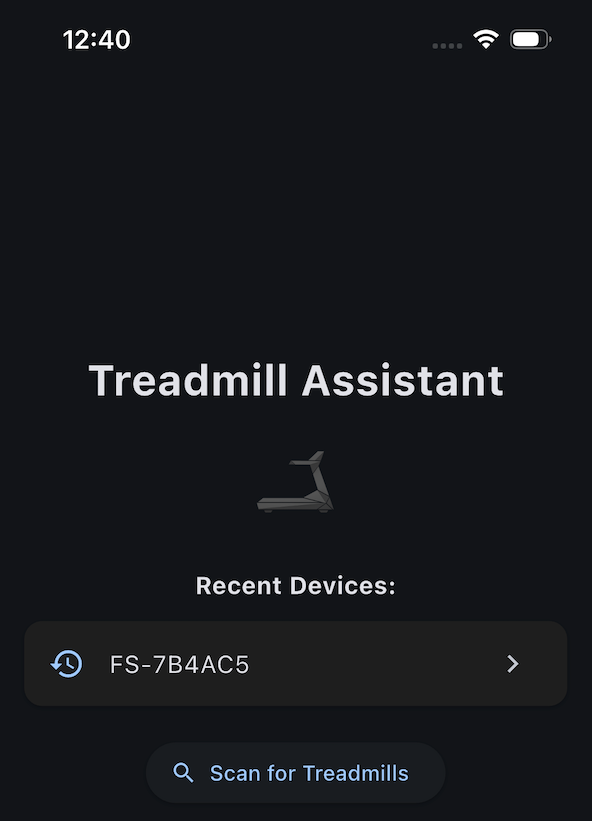
Step 1: First connection to your Treadmill
- Open Treadmill Assistant
- Tap Scan for Treadmill
- Select your treadmill from the list
- Wait for connection confirmation
Step 2: Enable Control (If Needed)
If this is your first time controlling the treadmill:
- Go to Settings > Treadmill Control
- Toggle Enable Treadmill Control ON
- Accept the liability waiver
- Return to main screen
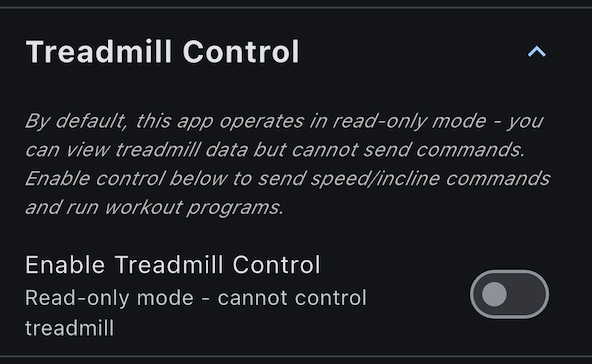
Read-Only Mode
If you just want to monitor stats without controlling the treadmill, you can skip this step and start the treadmill manually from its panel.
Step 3: Set Your Speed and Incline (If Control is enabled)
- On the main screen, find the Speed and Incline buttons
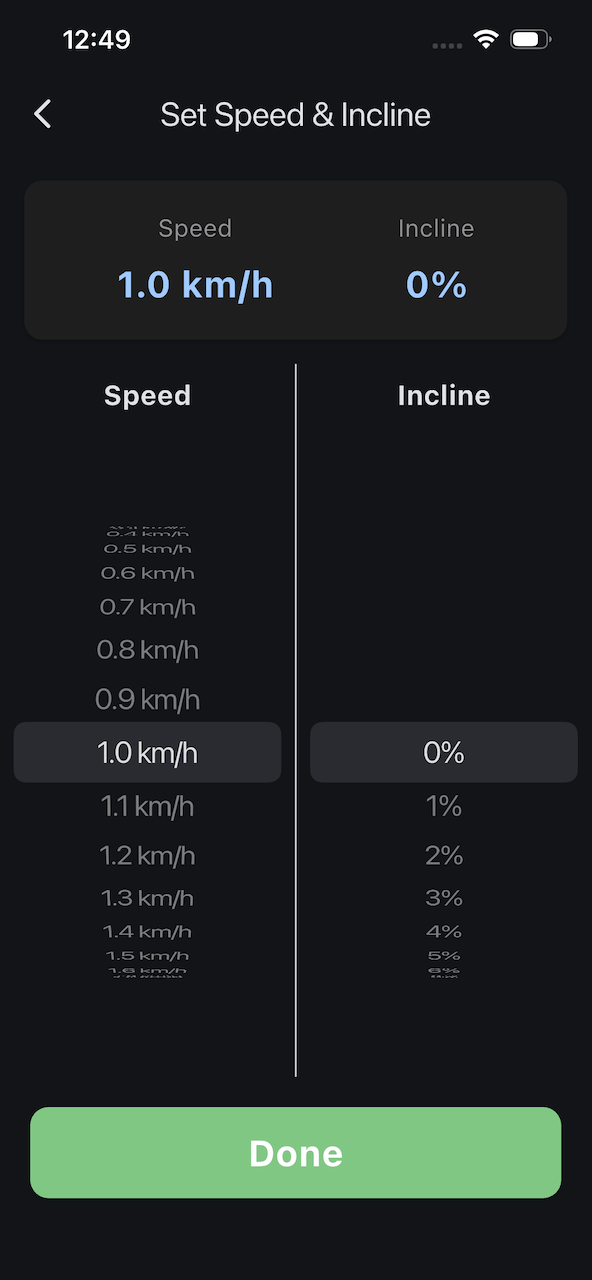
- Tap either slider to open the picker wheel
- Scroll to select your desired speed
- Scroll to select your desired incline (if your Treadmill supports it)
- Tap the Done button to close the screen and apply your settings.
Start Slow
For your first workout, try 5-6 km/h (walking pace) with 0% incline to get comfortable with the app.
Step 4: Press START
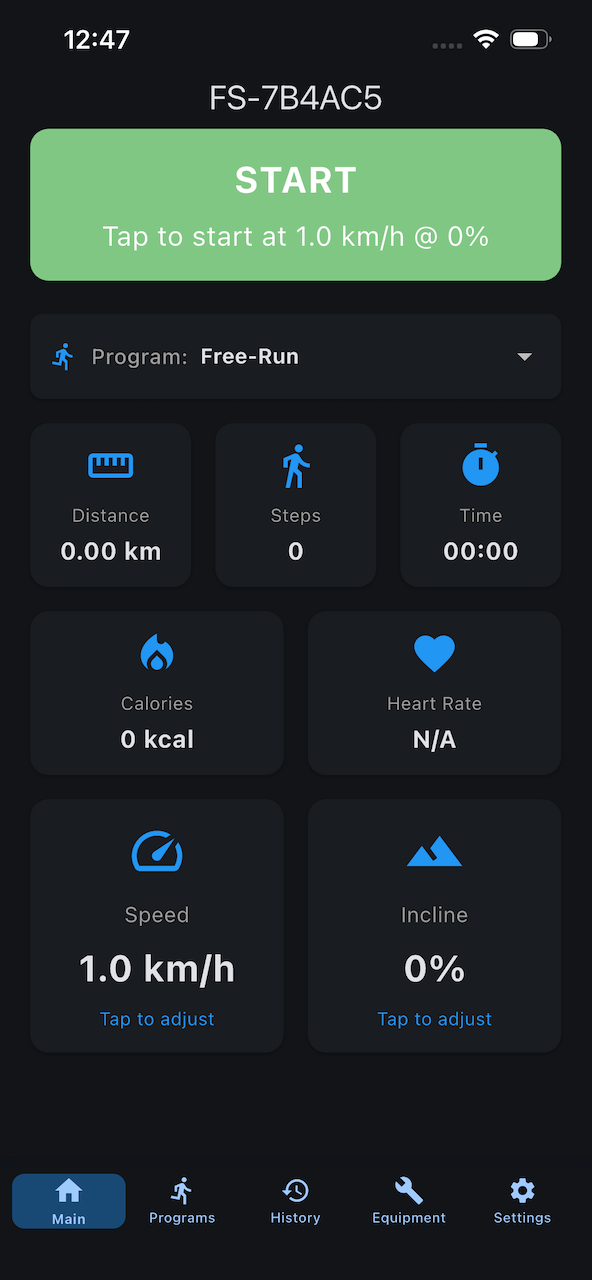
- Tap the large START button at the top of the screen
- Your treadmill will beep 3 times (countdown)
- The belt will begin moving
- Watch your stats update in real-time!
Step 5: Monitor Your Stats
While running, you'll see live updates for:
- Speed - Current km/h
- Distance - Total km covered
- Time - Workout duration
- Calories - Energy burned
- Steps - Total steps taken
- Heart Rate - BPM (if hands on sensors)
- Incline - Current incline %
Step 6: Stop Your Workout
When you're done:
- Tap the STOP button at the top of the screen
- The treadmill will stop
- Your workout is automatically saved!
- Stats sync to your health platform (if enabled)
What Happens After Your Workout?
Automatic Saving
Every workout lasting 15 seconds or longer is automatically saved to:
- The app's History tab
- Your health platform (if integration is enabled)
- Cloud storage (if sync is enabled)
View Your Workout
- Tap the History tab (clock icon)
- Find your workout at the top of the list
- Tap to expand and see full details

Try a Workout Program
Ready to level up? Create your first workout program:
- Tap the Programs tab (list icon)
- Tap the + button to create a new program
- Add segments with different speeds and inclines
- Save your program
- Return to main screen - your program is now selected in the dropdown
- Press START
The program will automatically adjust speed and incline through different segments. Just follow along!
See Creating Custom Programs for detailed instructions.
Quick Tips for New Users
Keep Screen On
Enable screen lock to prevent timeout during workouts:
- Settings > Workout Screen Lock
- Toggle Keep Screen On ON
Auto-Connect
Save time by enabling auto-connect:
- Settings > BLE Connection
- Toggle Auto-Connect to Last Device ON
Adjust During Workout
You can change speed and incline mid-workout:
- Tap the speed or incline slider
- Adjust to desired value
- The treadmill updates immediately
View Last Workout Stats
When the treadmill is idle after a workout:
- Tap any stat card (Speed, Distance, etc.)
- The last workout value will display for 5 seconds
- Helps you remember where you left off!
Common Questions
Can I start the treadmill manually from the panel before connecting the app?
Yes! If you start from the treadmill panel, the app enters Passive Mode where it monitors your workout but cannot send commands. You'll see a blue "PASSIVE MODE" indicator.
Do I need to enable health integration?
No, health integration (Apple Health on iOS, Health Connect on Android) is optional. The app works perfectly fine without it, saving all data locally.
What if I need to pause?
The app doesn't have a pause feature (on the treadmills we tested - it was unavailable). Simply press STOP when you need a break. When ready to resume, press START again (this will count as a new workout).
How accurate are the stats?
Stats come directly from your treadmill's sensors. Accuracy depends on your treadmill's calibration. Heart rate requires hands on treadmill sensors.
Can I use the app without internet access?
Yes! All features work without internet except cloud sync. Workouts are saved locally and can sync when you're back online. Note: "Offline mode" in the app refers to browsing your history without connecting to a treadmill via Bluetooth.
Next Steps
Now that you've completed your first workout:
- Learn about workout programs - Structured training plans
- Create custom programs - Design your own workouts
- Understand your stats - Dive deeper into your data
- Track equipment maintenance - Keep your gear in shape
Questions? Check out the FAQ or Troubleshooting sections.