Creating Custom Programs
Design personalized workout programs tailored to your fitness goals.
Creating a New Program
Step 1: Open Program Editor
- Navigate to the Programs tab
- Tap the + (Plus) button in the top right
- The program editor opens
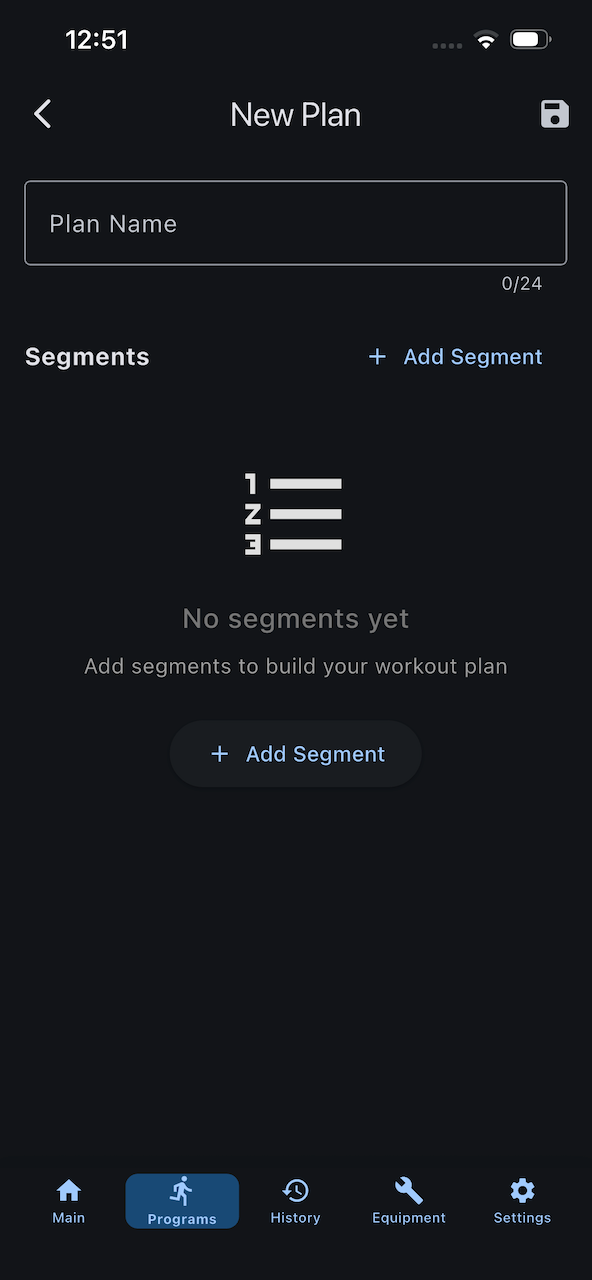
Step 2: Name Your Program
- Tap the Plan Name field
- Enter a descriptive name (e.g., "Morning 5K", "Hills Workout")
- Name appears in the program selector
Step 3: Add Segments
Now build your workout by adding segments:
- Tap + Add Segment button at the bottom
- A new segment is added to the list
- Configure the segment (see below)
- Repeat to add more segments
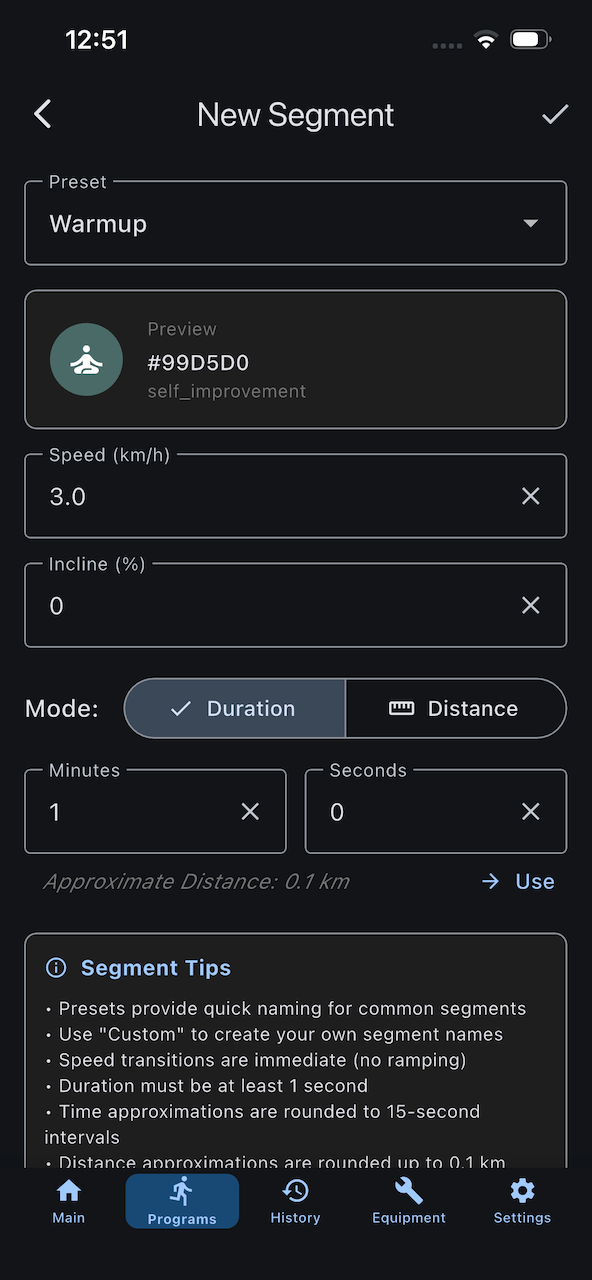
Step 4: Configure Each Segment
For each segment, set:
Segment Preset
Choose a preset type (or custom):
- 🧘 Warmup (Teal) - Low intensity preparation
- 🚶 Walking (Green) - Walking pace
- 🏃 Running (Yellow) - Moderate running
- ⚡ Sprinting (Orange) - High intensity
- 💧 Cooldown (Blue) - Recovery pace
- ⭐ Custom (Grey) - Your own type
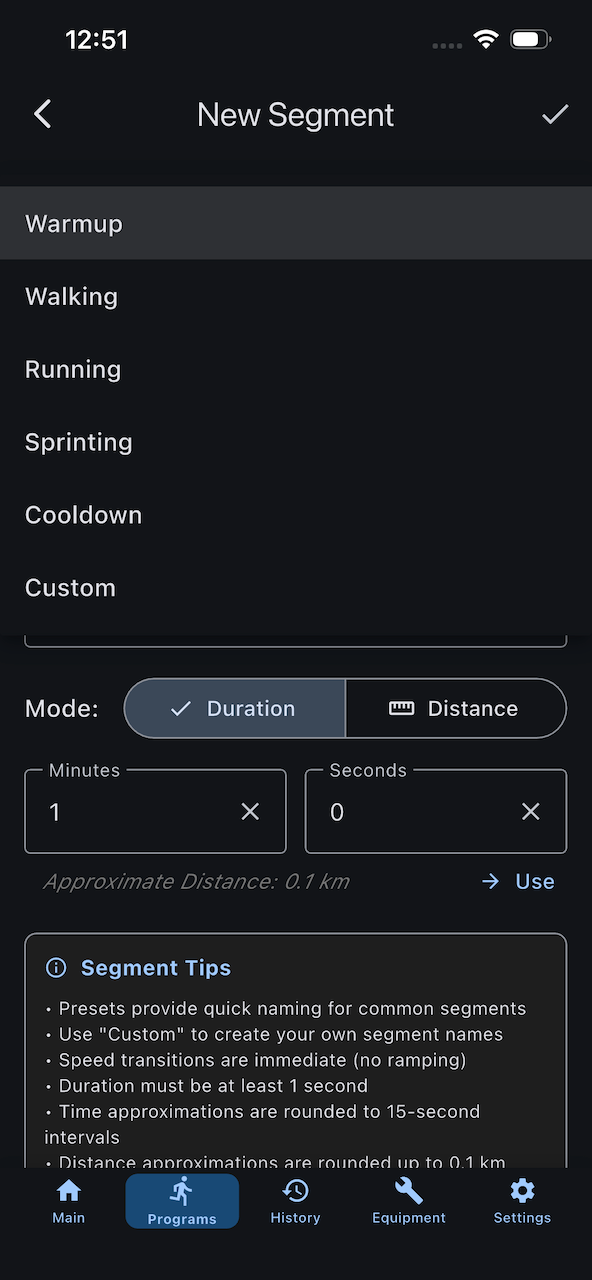
Segment Memory
Each preset type remembers the last speed and incline you used for it, making it faster to create similar workouts.
Speed
- Tap Speed field
- Enter target value (in 0.1 km/h increments)
Incline
- Tap Incline field
- Use picker wheel to select (in 1% increments)
Duration or Distance
Choose one:
Time-Based Segment:
- Tap Duration tab
- Enter minutes and seconds
- Segment runs for that time
Distance-Based Segment:
- Tap Distance tab
- Enter distance in meters
- Segment runs until distance covered
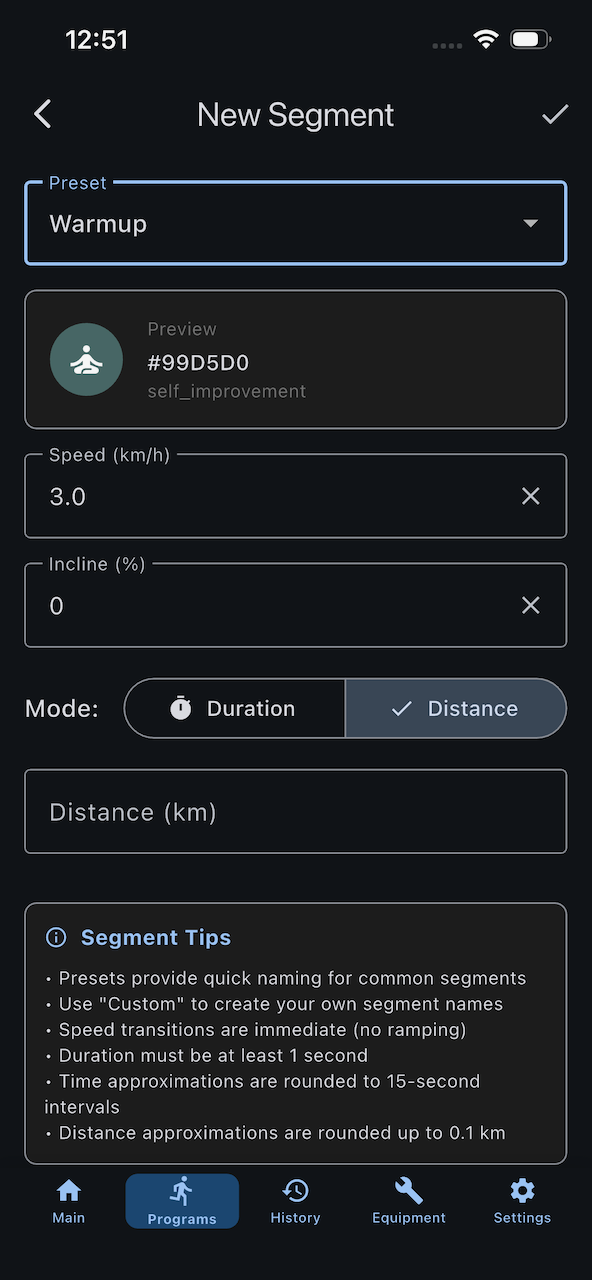
Duration vs Distance
You can mix both types in the same program. Time-based segments countdown by time; distance-based countdown by distance.
Estimating distance
The app tries to estimate the distance you will cover based on the time and
speed you enter into it. If you want to switch to distance tracking - hit the -> Use button to apply the calculated value.
Custom Name (Optional)
If using "Custom" preset:
- Tap Segment Name field
- Enter custom name
- Appears during workout
Color and Icon (Optional)
For custom segments:
- Tap Color selector
- Choose from available colors
- Tap Icon selector
- Enter the name of the Material 3 icon you want to use.
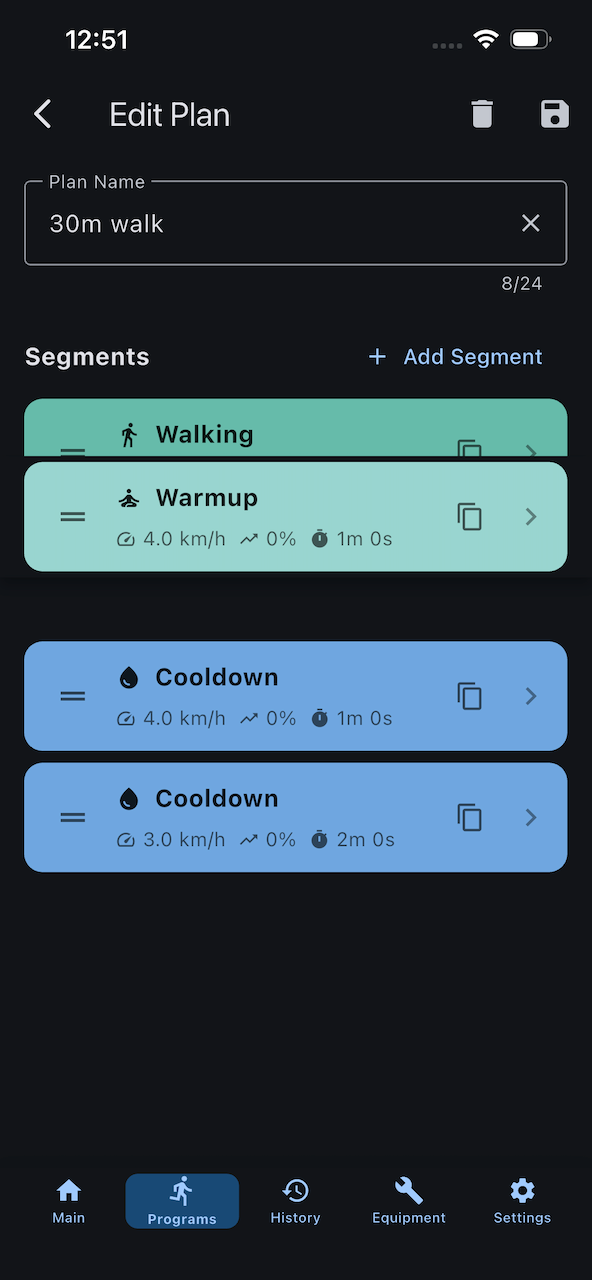
Step 5: Reorder Segments
Change segment order by dragging:
- Tap and hold the drag handle (≡) on the right of a segment
- Drag to desired position
- Release to place
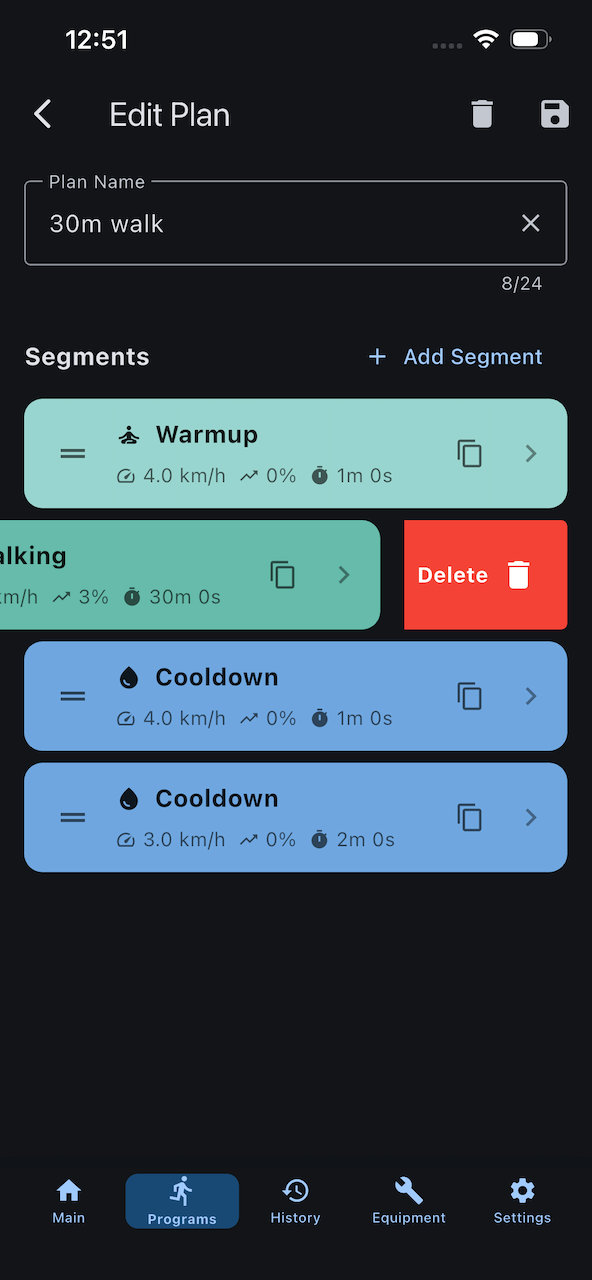
Step 6: Duplicate or Delete Segments
To duplicate:
- Swipe left on the segment
- Tap Duplicate button
- Copy appears below original
To delete:
- Swipe left on the segment
- Tap Delete button
- Segment is removed
Step 7: Save Your Program
- Review all segments
- Tap Save button (top right)
- Program is added to "My Programs"
Your custom program now appears in the program selector!
Editing Existing Programs
Edit a Custom Program
- Go to Programs tab
- Tap the program you want to edit
- Tap Edit button
- Make your changes
- Tap Save
When to Edit
Common reasons to edit programs:
- Adjust speeds as fitness improves
- Add/remove segments
- Change durations
- Fix mistakes
Program Design Tips
Start with Warmup
Always begin with a warmup segment:
- 3-5 minutes
- Low speed (4-6 km/h)
- 0-1% incline
- Prepares body for exercise
End with Cooldown
Finish every program with cooldown:
- 3-5 minutes
- Gradually decreasing speed
- Low or 0% incline
- Aids recovery
Progressive Overload
Design programs that gradually increase intensity:
- Start easy, build up
- Peak in the middle
- Taper toward end
Example structure:
- Warmup (5 min, easy)
- Build (10 min, moderate)
- Peak (5 min, hard)
- Recover (5 min, moderate)
- Cooldown (5 min, easy)
Interval Training
For interval workouts:
- Alternate high and low intensity
- Work intervals: 30s-3min
- Rest intervals: equal or double work time
- Repeat 5-10 rounds
Example:
- Warmup (5 min)
- Sprint (1 min) → Recovery (2 min) × 5
- Cooldown (5 min)
Distance Goals
Build distance-based programs for race prep:
- Set total distance goal
- Break into manageable segments
- Vary pace throughout
Example 5K program:
- Warmup (800m, easy)
- Steady (3000m, race pace)
- Push (1000m, fast)
- Cooldown (200m, easy)
Segment Presets Explained
Preset-Specific Defaults
Each preset remembers your last-used values:
- Select "Warmup" → Fills in your usual warmup speed/incline
- Select "Running" → Fills in your typical running pace
- Select "Sprint" → Fills in your max sprint settings
This makes creating similar workouts much faster.
When to Use Custom
Use "Custom" preset when:
- Segment doesn't fit existing categories
- Want unique color/icon combination
- Creating specialized segments (e.g., "Recovery Walk", "Hill Sprint")
Example Programs
Beginner Program
Goal: Build endurance, 20 minutes
- Warmup: 5 min @ 5 km/h, 0%
- Walking: 10 min @ 6 km/h, 0%
- Cooldown: 5 min @ 4 km/h, 0%
Intermediate Program
Goal: Cardio fitness, 30 minutes
- Warmup: 5 min @ 6 km/h, 0%
- Running: 8 min @ 8 km/h, 1%
- Running: 8 min @ 9 km/h, 2%
- Running: 4 min @ 7 km/h, 0%
- Cooldown: 5 min @ 5 km/h, 0%
Advanced HIIT Program
Goal: High intensity, 25 minutes
- Warmup: 5 min @ 6 km/h, 0%
- Sprint: 1 min @ 12 km/h, 0%
- Recovery: 2 min @ 5 km/h, 0%
- (Repeat Sprint/Recovery 5 times)
- Cooldown: 5 min @ 5 km/h, 0%
Hill Climbing Program
Goal: Strength, 30 minutes
- Warmup: 5 min @ 6 km/h, 0%
- Hill 1: 4 min @ 7 km/h, 3%
- Recovery: 2 min @ 5 km/h, 0%
- Hill 2: 4 min @ 7 km/h, 5%
- Recovery: 2 min @ 5 km/h, 0%
- Hill 3: 4 min @ 7 km/h, 7%
- Recovery: 4 min @ 5 km/h, 0%
- Cooldown: 5 min @ 4 km/h, 0%
Managing Your Programs
Favoriting
Mark frequently used programs as favorites:
- Tap the program
- Tap star icon (top right)
- Program moves to Favorites section
Deleting
Remove programs you no longer need:
- Swipe the program card to the left
- Confirm deletion
Cannot Undo
Deleted programs cannot be recovered. Clone important programs before experimenting with changes.
Organizing
Keep your programs organized:
- Use clear, descriptive names
- Delete unused programs regularly
- Favorite your go-to workouts
- Clone and modify instead of creating from scratch
Next Steps
- Run your custom program - Put it into action
- View program history - Track program performance
- Share tips - Learn advanced techniques
Need inspiration? Check out the Tips & Tricks page for more program ideas.