Connecting Your Treadmill
Learn how to pair your FitShow or FTMS-compatible treadmill with Treadmill Assistant.
Prerequisites
Before connecting:
- ✅ Treadmill is powered on
- ✅ Treadmill Bluetooth is enabled
- ✅ phone Bluetooth is enabled
- ✅ You're within 2 meters of the treadmill
First-Time Connection
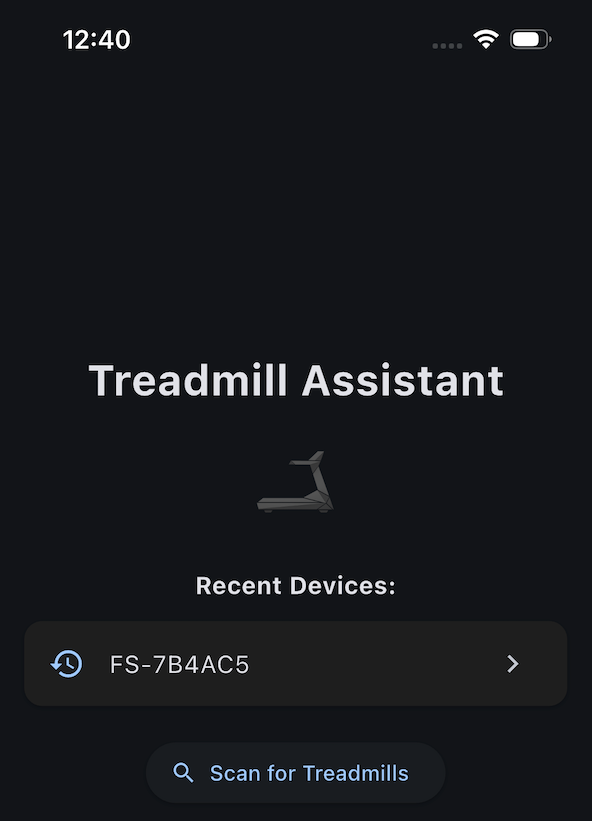
Step 1: Scan for Devices
- Open Treadmill Assistant
- On the main screen, tap Scan for Treadmills
- The app will search for nearby compatible devices
Step 2: Select Your Treadmill
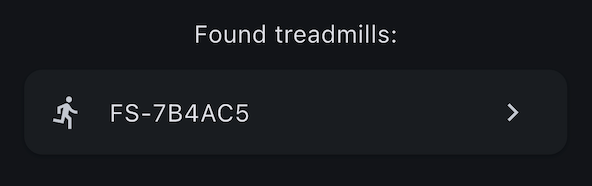
- Your treadmill should appear in the list (usually shows as "FS-XXXXXX")
- Tap on your treadmill to connect
- Wait for the connection to establish (usually takes 2-5 seconds)
Can't Find Your Treadmill?
- Ensure treadmill is powered on and idle (not running)
- Check that treadmill Bluetooth is enabled (consult your treadmill manual)
- Move your phone closer to the treadmill
- Make sure no other devices are connected to the Treadmill (or the official
FitShow app) - Try turning treadmill Bluetooth off and on again
Step 3: Connection Confirmed
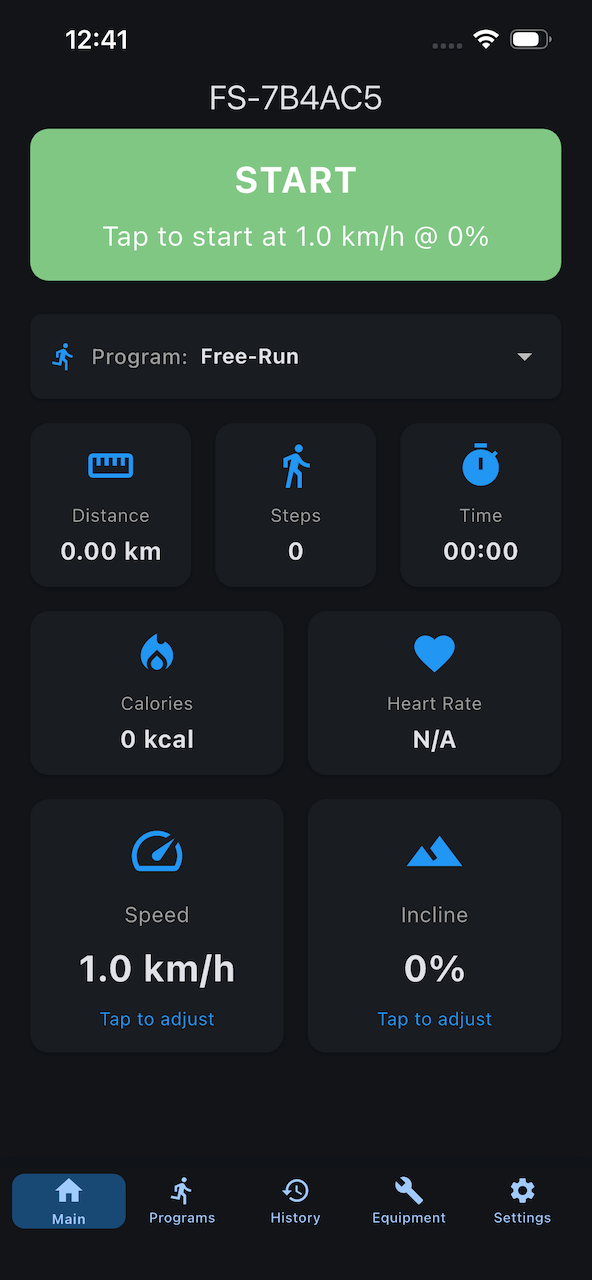
Once connected, you'll see:
- Treadmill name displayed at the top of the screen
- Real-time stats updating (speed, distance, etc.)
- START/STOP button becomes active (if treadmill control is enabled)
Auto-Connect
After connecting once, Treadmill Assistant can automatically reconnect to your last used treadmill:
Enable Auto-Connect
- Go to Settings > BLE Connection
- Toggle Auto-Connect to Last Device ON
Now when you open the app:
- It will automatically search for your last connected treadmill
- If found, it connects automatically within 3-5 seconds
- If not found, you can manually scan
Recommended Setting
Enable auto-connect for the fastest startup experience, especially if you always use the same treadmill.
Device Sort Order
If you use multiple treadmills, you can customize how devices are sorted:
- Go to Settings > BLE Connection
- Select Device Sort Order:
- Last Used - Most recently connected device appears first (default)
- Alphabetical - Devices sorted A-Z by name
Disconnecting
To disconnect from your treadmill:
- Stop any active workout
- Close the app - the connection will close automatically.
Connection History
The app remembers all devices you've connected to. This allows:
- Quick reconnection to previous treadmills
- "Last Used" sorting
- Auto-connect to your regular treadmill
Offline Mode
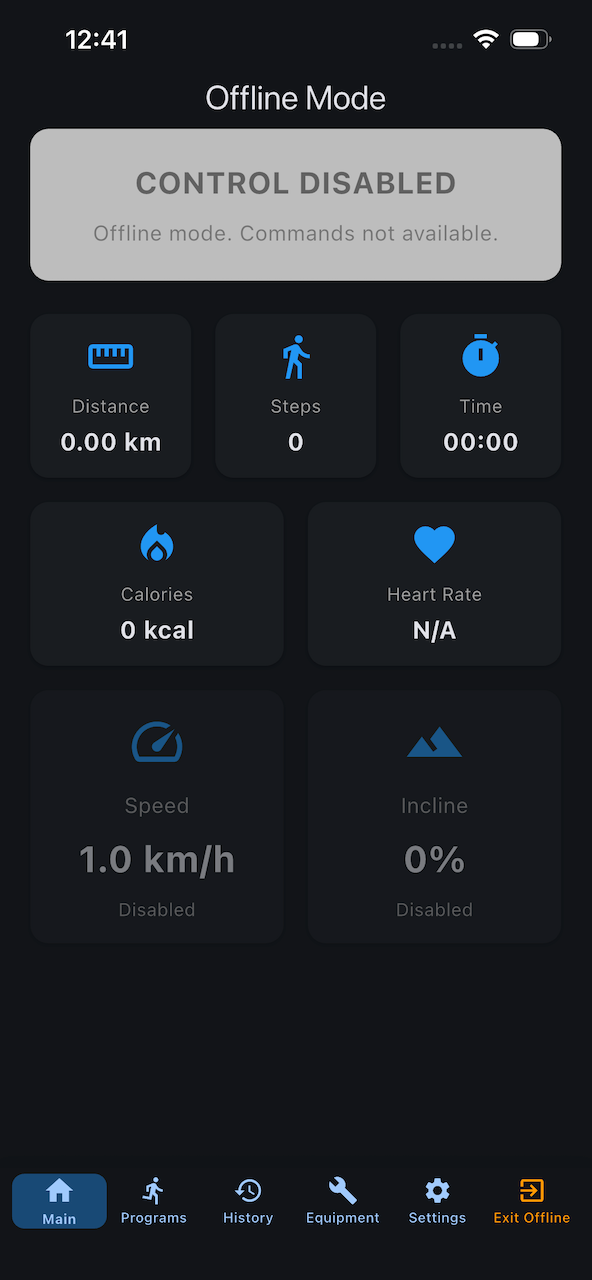
Want to view your workout history without connecting to a treadmill?
- On the connection screen, tap Offline mode
- Navigate to the History tab to browse past workouts
- You cannot start new workouts in offline mode
Troubleshooting Connection Issues
Treadmill Not Found
Problem: Treadmill doesn't appear in scan results
Solutions:
- Ensure treadmill is powered ON
- Check treadmill Bluetooth is enabled (check manual)
- Move phone within 2 meters of treadmill
- Restart treadmill Bluetooth
- Make sure another app/device aren't already connected.
- Restart phone Bluetooth (Settings > Bluetooth > Off/On)
Connection Fails
Problem: Connection attempt fails or times out
Solutions:
- Ensure treadmill is idle (not running from panel)
- Try turning treadmill off and on
- Forget the device and reconnect:
- Close app completely
- Open app and scan again
- Select treadmill from fresh scan
- Restart phone if problem persists
Connection Drops During Workout
Problem: Connection lost mid-workout
Solutions:
- Keep phone within 2-3 meters of treadmill
- Remove obstacles between phone and treadmill
- Ensure treadmill Bluetooth antenna isn't obstructed
- Check for interference from other Bluetooth devices
- Keep phone charged (low battery can affect Bluetooth)
Auto-Connect Not Working
Problem: App doesn't automatically connect
Solutions:
- Verify auto-connect is enabled: Settings > BLE Connection
- Ensure treadmill is powered on before opening app
- Wait 5-10 seconds - auto-connect can take time
- If fails, manually tap "Connect" button
Multiple Treadmills
If you use different treadmills (home, gym, etc.):
- The app stores connection history for all devices
- Auto-connect uses the last connected device
- Manually scan to see all available treadmills
- Use "Last Used" sort order to prioritize your regular device
Next Steps
Connected successfully? Time to:
- Start your first workout - Quick start guide
- Learn about controls - Master speed and incline adjustment
Still having issues? Visit the Connection Troubleshooting page for advanced solutions.