Viewing Your History
Access and explore all your past workouts in the History tab.
Accessing History
- Tap the History tab (clock icon) in the bottom navigation
- Your workouts appear in reverse chronological order (newest first)
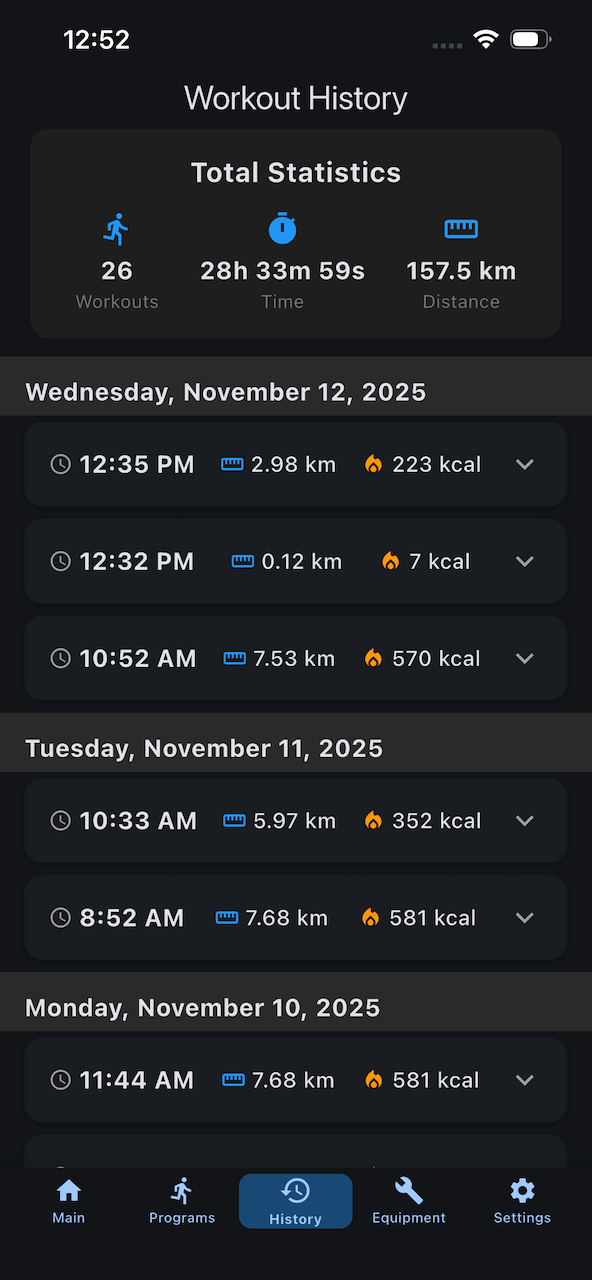
- Workouts are grouped by date
Workout List Display
Workout Cards (Collapsed)
Each workout card shows at a glance:
- Time of Day (e.g., "2:30 PM")
- Distance (e.g., "5.2 km")
- Calories (e.g., "245 kcal")
- Sync Status icon
- Expansion indicator (tap to view more)

Workout Cards (Expanded)
Tap a workout to see full details:
Basic Stats
- Duration (HH:MM:SS)
- Distance (km)
- Calories (kcal)
- Steps (total count)
Speed Stats
- Average Speed (km/h)
- Maximum Speed (km/h)
Incline Stats
- Average Incline (%)
- Maximum Incline (%)
Heart Rate (if available)
- Minimum HR (BPM)
- Average HR (BPM)
- Maximum HR (BPM)
Zone Progression Timeline (if HR data available)
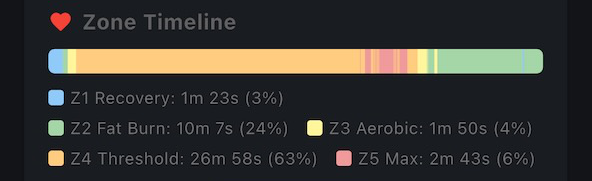
When heart rate data was recorded during your workout, you'll see a zone progression timeline showing how your heart rate zones changed throughout the workout:
- Color-coded segments - Each zone has a distinct color:
- Zone 1 (Recovery): Light blue
- Zone 2 (Fat Burn): Green
- Zone 3 (Aerobic): Yellow
- Zone 4 (Threshold): Orange
- Zone 5 (Maximum): Red
- Gray segments - Represent pause gaps during the workout
- Segment width - Proportional to time spent in each zone
Below the timeline, a legend shows:
- Total time spent in each zone
- Percentage of workout in each zone
- Pause duration (if any pauses occurred)
This visualization helps you understand your workout intensity progression at a glance.
Learn more: Heart Rate Zones
Program Info (if applicable)
- Program Name (e.g., "Beginner's First Run")
Health Sync Status
- Sync Status:
- ✅ Synced (green checkmark)
- ⏳ Pending (orange clock)
- ❌ Failed (red error with reason)

Sync Status Indicators
Synced ✅
- Workout successfully saved to your health platform
- Green checkmark icon
- No action needed
Pending ⏳
- Workout waiting to sync
- Orange clock icon
- Will sync automatically
- Can manually trigger sync in Settings
Failed ❌
- Sync attempt failed
- Red error icon
- Shows error reason (e.g., "Permission denied")
- Check health permissions
- Try manual sync from Settings
Learn more: Syncing Workouts
Period Summaries
Between workout groups, you may see summary cards for completed time periods.
Weekly Summaries
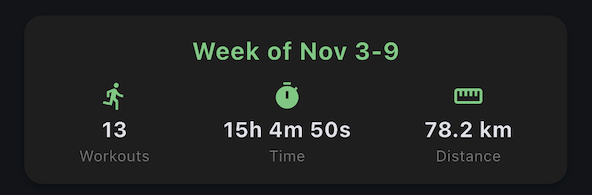
Displayed at the end of each completed week:
- Total Workouts that week
- Total Time (hours and minutes)
- Total Distance (kilometers)
Monthly Summaries
Displayed at the end of each completed month:
- Total Workouts that month
- Total Time (hours and minutes)
- Total Distance (kilometers)
Yearly Summaries
Displayed at the end of each completed year:
- Total Workouts that year
- Total Time (hours and minutes)
- Total Distance (kilometers)
Current Period Exclusion
Only Completed Periods
Summaries only appear for completed periods. Your current week/month/year does not show a summary until it's finished.
Configuring Summaries
Control which summaries appear:
- Go to Settings > Workout History
- Toggle summaries on/off
- Choose weekly, monthly, yearly, or any combination
- Select week start day (Sunday or Monday)
Learn more: Understanding Your Stats
Total Stats Card
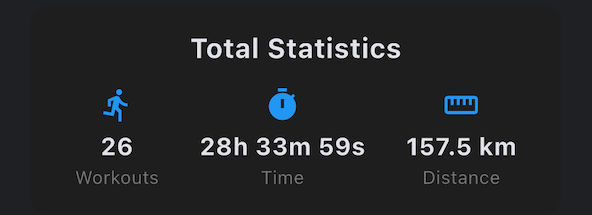
At the top of History tab:
- Total Workouts across all time
- Total Time (hours and minutes)
- Total Distance (kilometers)
This provides your lifetime summary at a glance.
Scrolling Through History
Infinite Scroll
- Scroll down to load older workouts
- No pagination - continuous scrolling
- All workouts are preserved
Search (Future Feature)
Currently no search/filter functionality. Browse chronologically or use date headers to navigate.
Managing Workouts
Deleting Workouts
To remove a workout from history:
- Swipe left on the workout card
- Tap Delete button
- Choose deletion scope:
- Delete from App Only - Removes from Treadmill Assistant, keeps in your health platform
- Delete from App & Health - Removes from both places

Cannot Undo
Deleted workouts cannot be recovered. If uncertain, only delete from app (keeps Health backup).
Deletion Scope
Delete from App Only
- Removes from Treadmill Assistant History
- Workout remains in your health platform
- Useful if you want to clean up app but preserve Health data
Delete from App & Health
- Removes from both Treadmill Assistant and your health platform
- Workout is completely gone
- Use when workout was invalid or test data
Cloud Sync and Deletion
If cloud sync is enabled:
- Deletions sync across devices
- Deleting on one device removes from all devices
- Health deletions are device-specific
Empty History
If you have no workouts yet:
- History tab shows "No workouts yet"
- Start your first workout to populate history
- All workouts ≥15 seconds are automatically saved
Next Steps
- Understanding Your Stats - Make sense of the numbers
- Managing Workouts - Advanced history management
- Health Syncing - Ensure workouts sync properly
Questions about your data? See the FAQ.