Pause Mode
Take breaks during your workout without losing your progress.
What is Pause Mode?
Pause Mode is a software-based feature that lets you pause and resume workouts. This is especially useful for:
- Quick water breaks
- Answering the door
- Adjusting equipment
- Short rest periods during interval training
How It Works
When you pause a workout:
- The app sends a stop command to the treadmill
- Your accumulated stats (distance, time, calories) are preserved
- The app enters a "paused" state, waiting for you to resume
- When you resume, the workout continues from where you left off
Your total workout stats include all time spent running across pause/resume cycles.
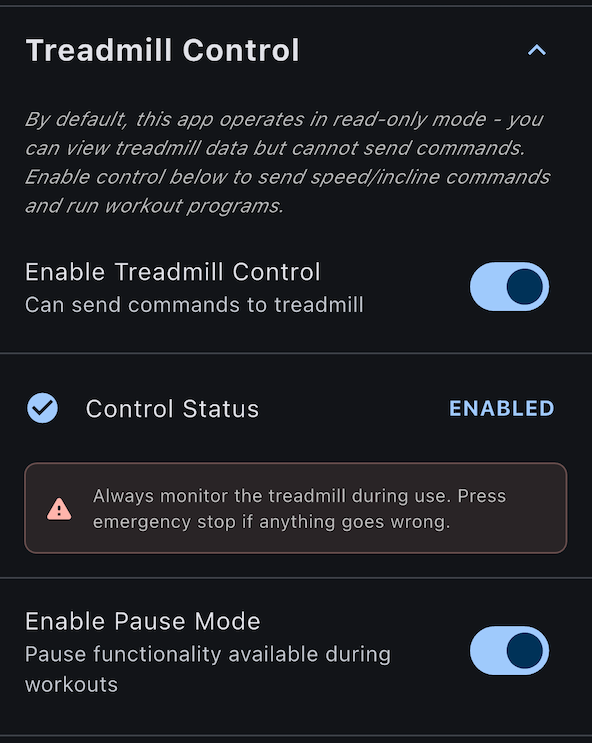
Enabling Pause Mode
Pause mode is disabled by default. To enable it:
- Go to Settings tab (gear icon)
- Find Treadmill Control section
- Tap Pause Mode
- Read the limitations warning
- Tap Enable to confirm
Using Pause During Workouts
To Pause
During an active program workout:
- Find the program status card showing your current segment
- Tap the pause button (⏸️)
- The treadmill will slow to a stop
- Screen shows "Tap to resume"
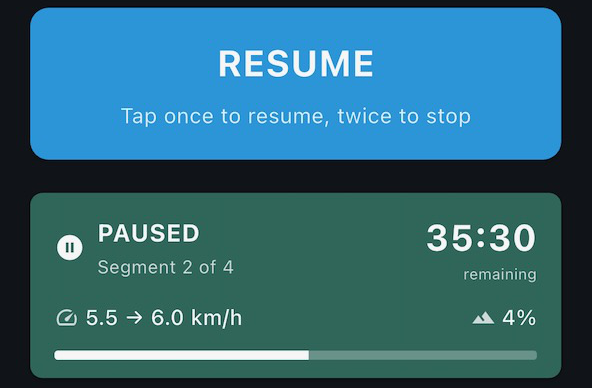
To Resume
When you're ready to continue:
- Tap "Tap to resume" on the program status card
- The treadmill restarts
- Your workout continues from where you left off
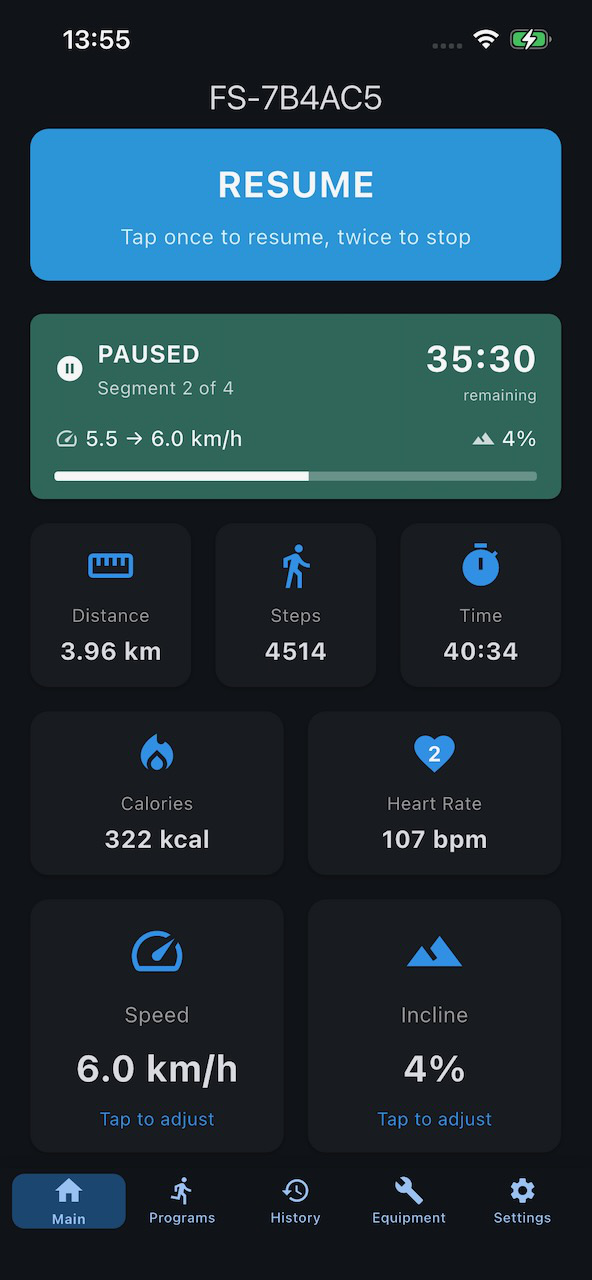
Paused State
While paused:
- Your accumulated stats are preserved
- Time counter pauses (paused time not counted)
- Program segment progress is saved
- Screen shows paused indicator
Limitations
Pause mode has important limitations you should understand:
Treadmill Behavior
Many treadmills don't support native pause in their firmware. When you pause:
- The treadmill actually stops and resets (not a true pause)
- When you resume, the treadmill display resets to zero
- The app continues tracking your total workout
This means:
- App readings show your total accumulated workout
- Treadmill display shows only the current running segment
- There will be a discrepancy between app and treadmill
What This Means for You
If you pause at 2.5 km and resume:
- App shows: 2.5+ km (continues accumulating)
- Treadmill shows: 0.0 km (resets on resume)
This is normal and expected. The app's numbers reflect your true total workout.
Transition Behavior
When pausing and resuming:
- Treadmill belt may take 1-2 seconds to fully stop
- Data may show slight discrepancies during transitions
- This is due to firmware behavior, not app issues
Data Accumulation
Your workout stats are preserved across pause/resume cycles:
| Metric | Behavior |
|---|---|
| Distance | Accumulates across all running segments |
| Duration | Total time running (excludes paused time) |
| Calories | Accumulates across all running segments |
| Steps | Accumulates across all running segments |
| Heart Rate | Captured during running segments only |
Pauses in Workout History
When you view a workout that had pauses in History, you'll see how pauses affected your workout:
Zone Timeline Visualization
If HR zones were enabled during the workout, the zone progression timeline shows:
- Colored segments - Time spent in each heart rate zone
- Gray segments - Pause periods (gaps in the timeline)
This visual representation helps you understand:
- How long each pause lasted
- How pauses affected your workout flow
- Your heart rate zones before and after each pause
Pause Time Calculations
- Duration - Only counts time when treadmill was running (excludes pauses)
- Zone totals - Only accumulate during running, not during pauses
- Pause duration - Shown separately in the zone legend (if applicable)
For example, a 30-minute workout with a 2-minute pause will show:
- Duration: 28 minutes (running time)
- Pause: 2 minutes (shown as gray in timeline)
Workout Recovery
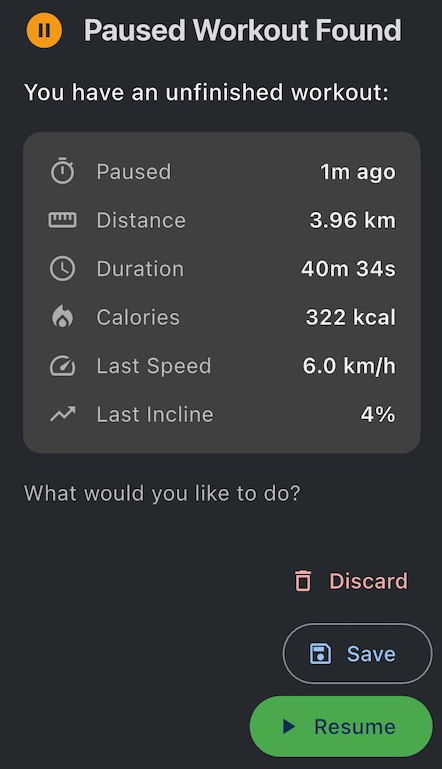
If the app closes while paused (battery dies, app crash, etc.):
On Next Launch
The app detects the paused workout and shows a recovery dialog:
Your Options
- Resume - Continue the paused workout
- Save - Save progress and end the workout
- Discard - Delete the paused workout without saving
Stale Workouts
If a workout was paused over 24 hours ago:
- Warning appears in the recovery dialog
- Consider saving or discarding rather than resuming
- Very old paused workouts may have incomplete data
When to Use Pause vs Stop
Use Pause When
- Taking a brief break (< 5 minutes)
- You plan to continue the same workout
- You want total stats across the session
Use Stop When
- Ending your workout for the day
- Taking a longer break (> 10 minutes)
- You want clean separation between workout sessions
Requirements
Pause mode requires:
- Treadmill control enabled - Must be able to control treadmill
- Program-based workout - Pause button only appears during programs
- Pause mode enabled - Toggle on in Settings
Pause is not available for:
- Free-Run mode (no program selected)
- Ad-hoc target workouts
- Passive mode (treadmill started from panel)
Troubleshooting Pause Issues
Pause Button Not Visible
Problem: Can't find the pause button
Solutions:
- Verify pause mode is enabled in Settings
- Ensure you're running a program-based workout
- Check you're not in passive mode
- Pause button appears in the program status card
Resume Not Working
Problem: Treadmill won't restart after pause
Solutions:
- Tap "Tap to resume" on the status card
- If unresponsive, try the START button
- Check treadmill is still connected
- Ensure treadmill is in idle state (belt stopped)
Stats Seem Wrong After Resume
Problem: Numbers don't match what you expected
Solutions:
- This is expected - see Limitations
- App shows total accumulated workout
- Treadmill shows current segment only
- Trust the app's numbers for your total workout
Paused Workout Not Recovered
Problem: App didn't ask about paused workout on restart
Solutions:
- Workout may have been too short (< 15 seconds)
- Paused state may not have been saved before app closed
- Check workout history - it may have auto-saved
Next Steps
- Start a workout - Learn about workout modes
- Create custom programs - Design pausable workouts
- View workout history - See paused workout stats
Need more help? Visit our Help & Support page.