Treadmill Control
Configure whether the app can control your treadmill or operate in read-only mode.
Control Modes
Treadmill Assistant has two modes:
Read-Only Mode (Default)
- ✅ Monitor stats in real-time
- ✅ View all data (speed, distance, time, etc.)
- ✅ Save workouts to history
- ❌ Cannot control speed, incline, or start/stop
- ❌ START button disabled
This is the default mode for safety.
Active Control Mode
- ✅ All read-only features
- ✅ Control speed via app
- ✅ Control incline via app
- ✅ Start/stop workouts via app
- ✅ Run workout programs automatically
Requires accepting liability waiver.
Enabling Treadmill Control
Step 1: Open Settings
- Tap Settings tab (gear icon)
- Find Treadmill Control section
- Currently shows "Disabled"
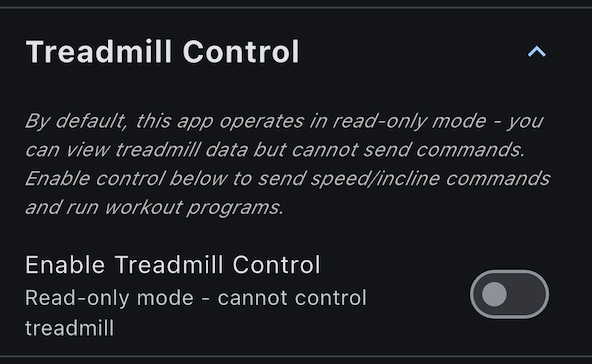
Step 2: Read the Waiver
- Tap Enable Treadmill Control toggle
- Liability waiver appears
- Read carefully - important safety information
The waiver explains:
- Controlling treadmill remotely has risks
- User responsible for safe operation
- Should be physically able to react
- Must follow treadmill safety guidelines
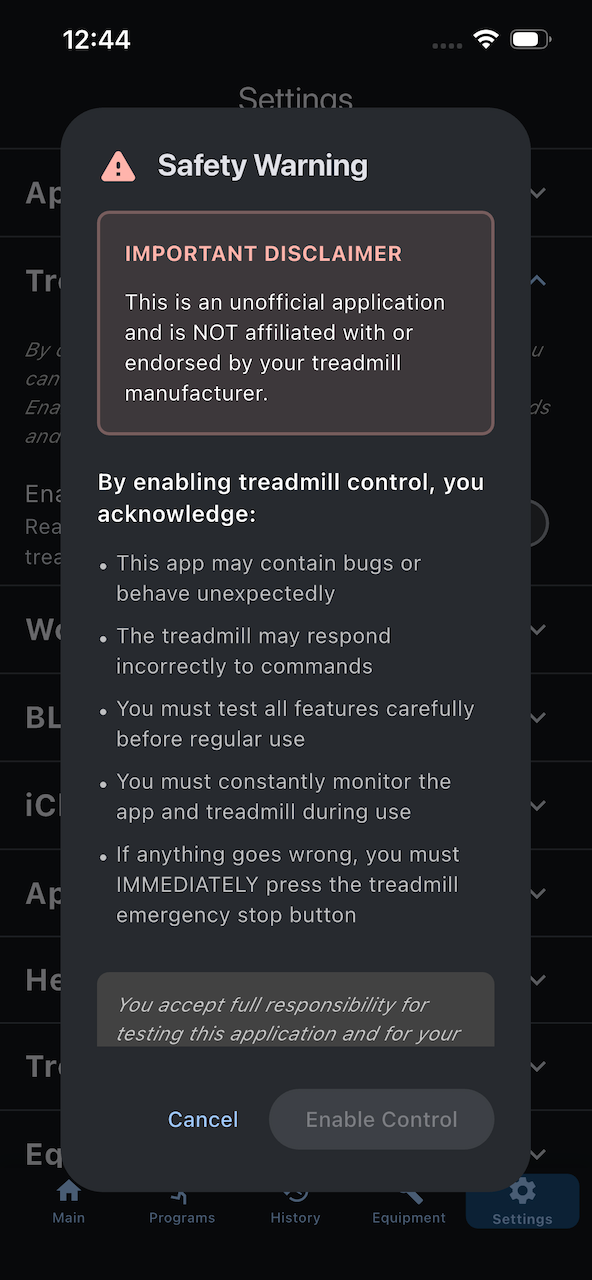
Step 3: Accept Waiver
- If you understand and accept:
- Tap Accept button
- If not comfortable:
- Tap Cancel to remain in read-only mode
Step 4: Control Enabled
Once accepted:
- Toggle turns ON
- Status shows "Enabled"
- START button becomes active on main screen
- Speed/incline controls become functional
Disabling Control
To return to read-only mode:
- Go to Settings > Treadmill Control
- Toggle Enable Treadmill Control OFF
- Control disabled immediately
- No waiver shown (already accepted)
Re-Enabling
If you disable then re-enable:
- Waiver does not appear again
- Your acceptance is remembered
- Control re-activates immediately
Why Read-Only Mode Exists
Safety First
Controlling a treadmill remotely has risks:
- Belt can start unexpectedly if phone in pocket
- Speed changes could cause falls if unexpected
- User might not be ready when START pressed
Read-only mode prevents accidental control while still allowing stat monitoring.
When to Use Read-Only
Use read-only mode if you:
- Prefer manual panel control
- Share device with others (kids, etc.)
- Want to monitor only
- Uncomfortable with remote control
The app is fully functional without control enabled!
Control Status Indicator
On Main Screen
The START/STOP button indicates control status:
Control Disabled:
- Button shows "Control Disabled" or is grayed out
- Cannot tap to start workout
- Must use treadmill's physical panel
Control Enabled:
- Button shows green "START" when idle
- Button shows red "STOP" when running
- Fully interactive
Passive Mode:
- Button shows blue "PASSIVE MODE"
- Treadmill started from panel, app monitoring only

Liability Waiver Details
What You're Accepting
By accepting the waiver, you acknowledge:
- Remote control has risks - Unexpected treadmill movement can cause injury
- User responsibility - You'll ensure safe operation
- Physical capability - You can safely use the treadmill
- Safety guidelines - You'll follow treadmill manufacturer's guidelines
- App limitations - App cannot guarantee safety
Your Responsibilities
When using treadmill control:
- Always be on or near treadmill when starting remotely
- Hold handrails during speed/incline changes
- Keep phone secure to prevent accidental taps
- Use emergency stop clip if available
- Stay alert during workouts
- Don't let others use your phone to control treadmill
Legal Protection
The waiver provides legal protection for the app developer:
- Not liable for misuse of control features
- Not liable for treadmill malfunctions
- Not liable for user injuries
- User accepts all risks
This is standard for fitness equipment control apps.
Control and Workout Programs
Programs Require Control
To run workout programs:
- Control must be enabled
- Programs need to adjust speed/incline automatically
- Cannot run programs in read-only mode
Without control:
- Program selector is disabled
- Can only use "Free-Run" mode
- Must manually adjust speed/incline on treadmill panel
Ad-Hoc Workouts
Similarly, ad-hoc workouts with targets:
- Require control to automatically stop at target
- Without control, must stop manually
Control and Passive Mode
Passive Mode Override
If you start treadmill from its panel:
- App enters Passive Mode (monitoring only)
- Control is temporarily suspended
- Even if control is enabled in settings
This is a treadmill safety feature, not an app setting.
Learn more: Passive Mode
Pause Mode
Enable software-based pause for mid-workout breaks.
What Is Pause Mode?
Pause mode lets you temporarily stop a workout without losing your progress. Your accumulated stats (distance, time, calories) are preserved across pause/resume cycles.
Enabling Pause Mode
- Go to Settings > Treadmill Control
- Find Pause Mode toggle
- Read the limitations warning
- Tap Enable to confirm
How It Works
When enabled:
- Pause button appears in program status card during workouts
- Tap to pause - treadmill stops, stats preserved
- Tap to resume - workout continues from where you left off
Limitations
Some treadmills may take 1-2 seconds to respond to pause commands. There may be a discrepancy between app readings and treadmill display after resuming.
See Pause Mode for full details on limitations and usage.
Troubleshooting Control
Control Toggle Grayed Out
Problem: Cannot toggle control on/off
Solutions:
- Disconnect from treadmill
- Close and reopen app
- Check treadmill compatibility
START Button Still Disabled
Problem: Enabled control but START button inactive
Solutions:
- Verify toggle is ON in Settings
- Reconnect to treadmill
- Ensure treadmill is idle (not running)
- Check not in Passive Mode
Waiver Won't Accept
Problem: Tapping Accept does nothing
Solutions:
- Scroll to bottom of waiver text (Accept may be below fold)
- Close and reopen Settings
- Restart app
Control Works Then Stops
Problem: Control worked, then stopped mid-workout
Solutions:
- Check Bluetooth connection
- Treadmill may have taken control (Passive Mode)
- Reconnect and try again
Safety Tips
Safe Control Practices
- Never start treadmill remotely when not on it
- Be ready to stop at any time (know where STOP button is)
- Start slow - Begin at walking pace, increase gradually
- Use handrails during speed/incline adjustments
- Keep phone charged - Dead phone means no app control
- Emergency stop clip - Use treadmill's safety clip if available
Unsafe Practices to Avoid
- ❌ Starting treadmill when phone is in pocket
- ❌ Letting others control your treadmill without instruction
- ❌ Making large speed jumps (e.g., 6→12 km/h instantly)
- ❌ Adjusting settings while looking at phone instead of belt
- ❌ Running programs without understanding segment changes
Next Steps
- Learn about controls - Master speed/incline adjustment
- Run programs - Use automatic workouts
- Safety tips - Best practices for safe operation
Control questions? See the FAQ.