Advanced Settings
Configure advanced features and preferences.
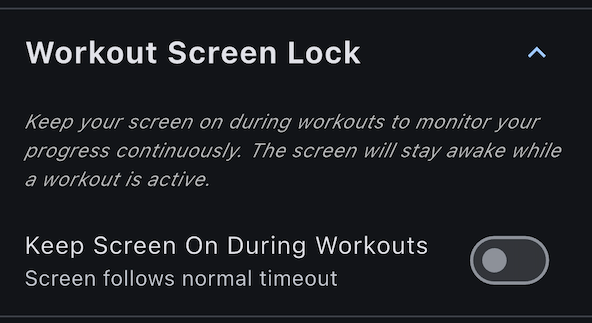
Workout Screen Lock
Prevent your device screen from turning off during workouts.
How It Works
With Screen Lock enabled:
- During workout: Screen stays on indefinitely
- When idle: Normal screen timeout applies
- Automatic: Activates only when workout is running
Enabling Screen Lock
- Go to Settings > Workout Screen Lock
- Toggle Keep Screen On During Workouts ON
Benefits
- No need to tap screen to keep it on
- Constant visibility of stats
- Prevents interruption during workout
Battery Consideration
Keeping screen on uses more battery:
- ~10-15% battery per hour (varies by brightness)
- Reduce screen brightness to save power
- Keep device plugged in for long workouts
Mid-Workout Toggle
Can enable/disable screen lock during workout:
- Open Settings while workout is running
- Toggle ON/OFF
- Takes effect immediately
Heart Rate Stabilization
Configure how the app detects stable heart rate readings from treadmill sensors.
What Is Stabilization?
Before recording min/max heart rate:
- App waits for readings to stabilize
- Prevents false lows from initial erratic values
- Ensures accurate heart rate data
Learn more: Heart Rate Tracking
Stabilization Settings
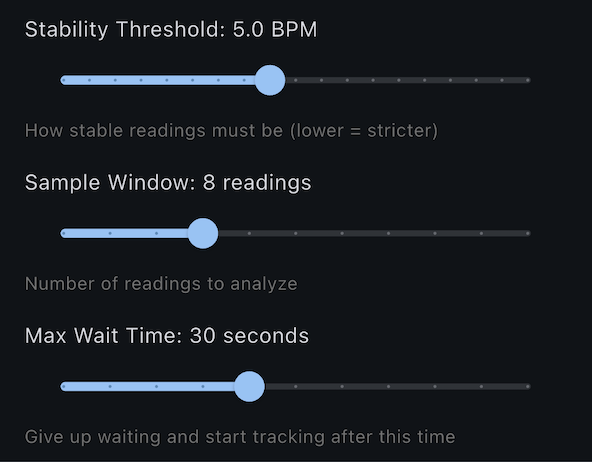
Stability Threshold:
- How stable readings must be (standard deviation)
- Default: 5 BPM
- Lower: More strict (takes longer to stabilize)
- Higher: Less strict (stabilizes faster, may be less accurate)
Sample Window:
- Number of readings to analyze
- Default: 10 readings
- More samples: More reliable but slower
- Fewer samples: Faster but less reliable
Timeout:
- Maximum wait for stabilization
- Default: 60 seconds
- If not stable by timeout, gives up (shows "N/A")
Adjusting Settings
- Go to Settings > Advanced Settings
- Find Heart Rate Stabilization
- Adjust sliders:
- BPM Threshold (1-10 BPM)
- Sample Window (5-20 readings)
- Timeout (30-120 seconds)
When to Adjust
Increase threshold if:
- HR never stabilizes (always "N/A")
- You want faster stabilization
- Your treadmill sensors are noisy
Decrease threshold if:
- Want more accurate readings
- Willing to wait longer
- Treadmill sensors are high quality
Most users: Keep defaults - they work well!
Heart Rate Monitor
Connect an external Bluetooth heart rate monitor for more accurate HR tracking.
Why Use an External Monitor?
- More accurate than treadmill grip sensors
- Continuous monitoring - No need to hold handles
- Works during entire workout - Not just when gripping
Setup
External HR monitors connect via Bluetooth Low Energy (BLE). Any device using the standard Heart Rate Profile will work.
See Heart Rate Monitor for complete setup instructions, supported devices, and HR zone configuration.
Equipment Maintenance Intervals
Configure when belt lubrication, belt replacement, and shoe replacement warnings appear.
Adjusting Intervals
- Go to Settings > Equipment Maintenance
- For each item:
- Enter distance interval (km)
- Enter time interval (hours or days)
- Changes take effect immediately
Learn more: Equipment Maintenance
Warning Thresholds
Customize when maintenance warnings appear by adjusting the warning and urgent thresholds.
Warning Threshold controls when progress bars turn yellow:
- Available options: 30%, 40%, 50%, 60%, 70%
- Default: 50%
- At this level, you should start planning maintenance
Urgent Threshold controls when progress bars turn red and home screen warnings appear:
- Available options: 70%, 75%, 80%, 85%, 90%, 95%
- Default: 80%
- At this level, maintenance needs attention soon
To configure:
- Go to Settings > Equipment Maintenance
- Find the Warning Thresholds section
- Select your preferred Warning Threshold from the dropdown
- Select your preferred Urgent Threshold from the dropdown
The warning threshold must be less than the urgent threshold. The app automatically prevents invalid combinations.
Example configurations:
- Early reminder (30%/70%): Get plenty of advance notice for scheduling maintenance
- Default (50%/80%): Balanced notification timing for most users
- Late reminder (70%/95%): Minimize warnings, only alert when maintenance is truly pressing
Workout History Summaries
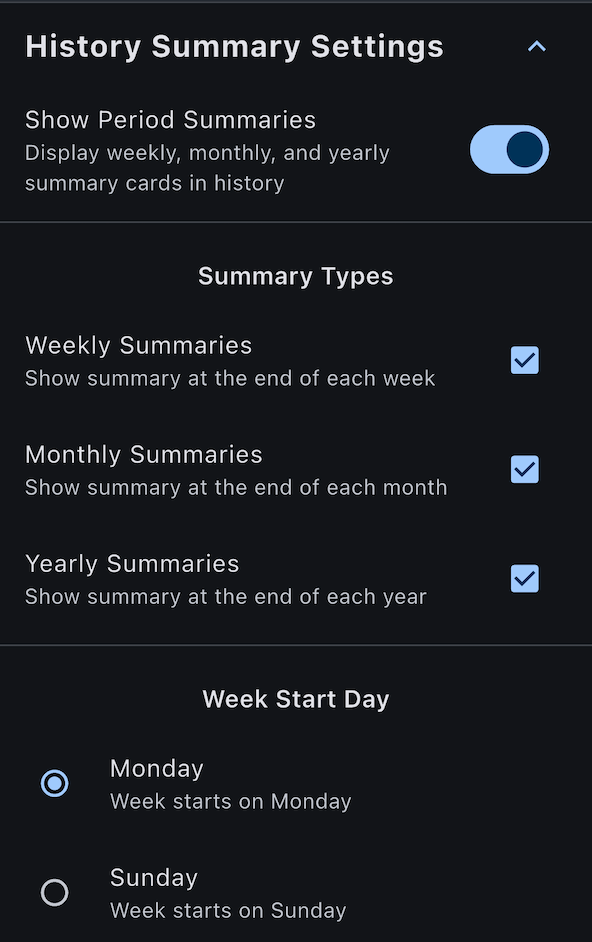
Configure weekly, monthly, and yearly summary displays in History tab.
Summary Types
Weekly Summary:
- Shows totals for completed weeks
- Appears between weeks in History
- Displays workouts, time, distance
Monthly Summary:
- Shows totals for completed months
- Appears between months in History
- Displays workouts, time, distance
Yearly Summary:
- Shows totals for completed years
- Appears between years in History
- Displays workouts, time, distance
Enabling Summaries
- Go to Settings > Workout History
- Toggle each summary type:
- Weekly Summary ON/OFF
- Monthly Summary ON/OFF
- Yearly Summary ON/OFF
Week Start Day
Configure when weeks start:
- Sunday
- Monday (default)
Affects weekly summaries and stats.
To change:
- Settings > Workout History
- Select Week Start Day
- Choose Sunday or Monday
Learn more: Understanding Your Stats
About
View app and treadmill information.
App Information
- App Version: Current version number
- Build Number: Specific build identifier
- Developer Info: Contact/support information
Connected Treadmill
When connected:
- Treadmill Name: Device name (e.g., "FS-7B4AC5")
- Speed Range: Min-max speed capability (e.g., 0-14 km/h)
- Incline Range: Min-max incline capability (e.g., 0-12%)
Useful for knowing your treadmill's limits.
Resetting Settings
To Factory Defaults
Currently no "reset all settings" button.
To reset:
- Option 1: Manually toggle/change each setting back to default
- Option 2: Reinstall app (preserves data if cloud sync enabled)
Resetting Specific Settings
Equipment maintenance:
- Go to Equipment tab
- Tap Reset on each maintenance item
Connection history:
- Cannot manually clear
- Reinstall app to reset
Theme:
- Settings > Appearance > Select "System"
Settings Sync via Cloud
When cloud sync is enabled:
- ✅ All settings sync across devices
- ✅ Preferences stay consistent
- ✅ Equipment maintenance tracking syncs
- ✅ History summary preferences sync
When disabled:
- ❌ Each device has independent settings
- ❌ Must configure each device separately
Learn more: Cloud Sync
Next Steps
- Equipment maintenance - Use maintenance intervals
- Heart rate tracking - Understand stabilization
- Tips & tricks - Advanced usage techniques
Settings questions? Check the FAQ.