Appearance Settings
Customize the app's visual theme to match your preference.
Theme Options
Treadmill Assistant supports three appearance modes:
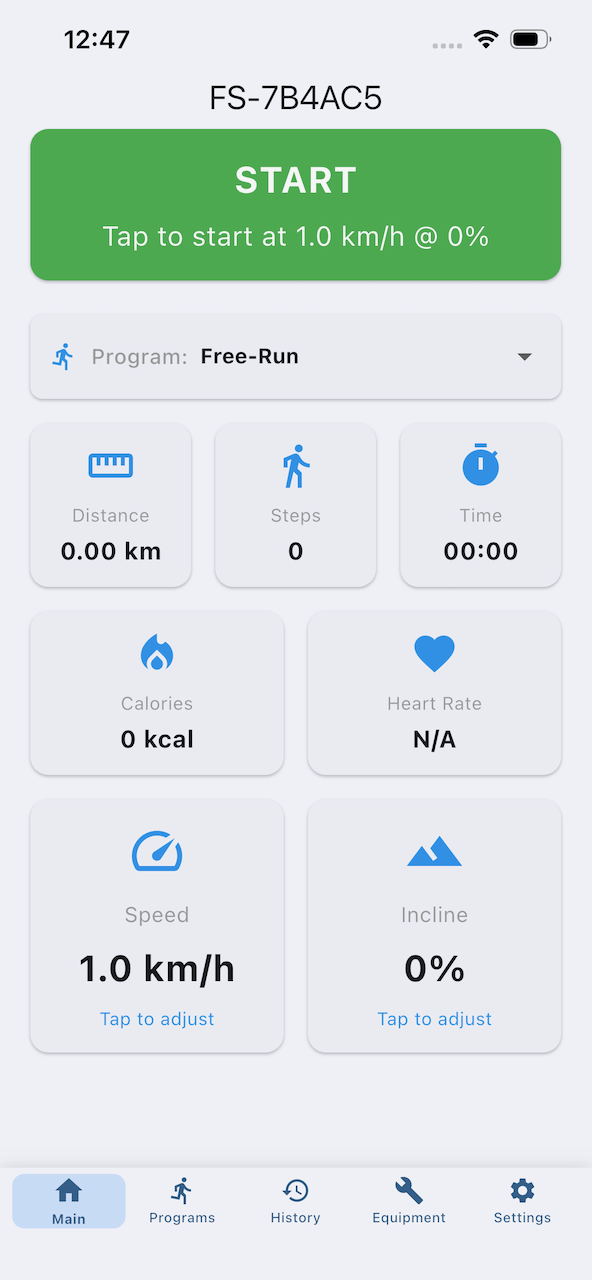
Light Mode
- Bright, white background
- Dark text
- Best for well-lit environments
- Easy to read in daytime
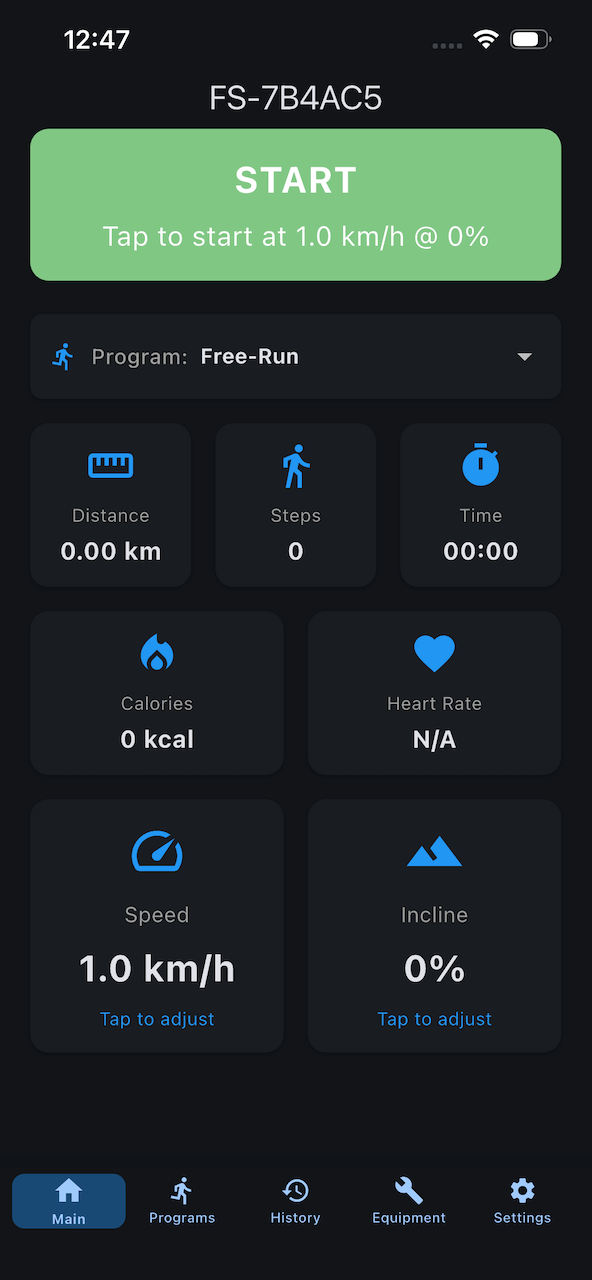
Dark Mode
- Dark, black background
- Light text
- Easy on eyes in low light
- Popular for night workouts
- Saves battery on OLED screens
System (Auto)
- Follows your device's system settings
- Automatically switches based on time of day (if configured in your device settings)
- Matches rest of your apps
- Recommended setting
Changing Theme
- Go to Settings tab (gear icon)
- Find Appearance section at top
- Tap your preferred theme:
- Light
- Dark
- System (recommended)
- Change takes effect immediately
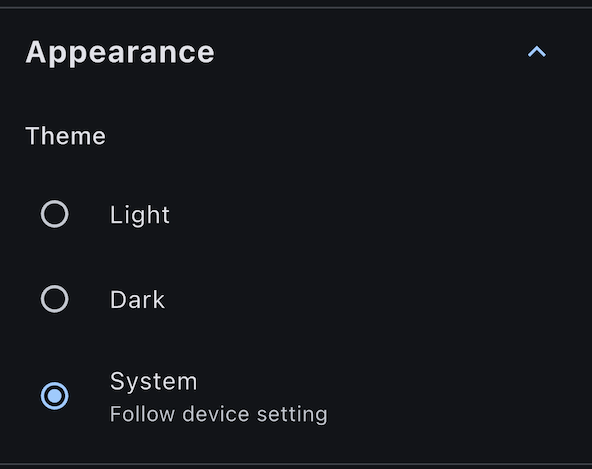
System (Auto) Theme Details
How It Works
When set to "System":
- App checks your device's appearance setting
- In System Settings > Display & Brightness:
- Light → App uses light mode
- Dark → App uses dark mode
- Automatic → App switches based on time
Benefits
- Consistency across all apps
- Automatically adjusts throughout day
- No need to manually switch
- Respects system-wide preference
System Dark Mode Schedule
In System Settings > Display & Brightness:
- Automatic: Switches at sunset/sunrise based on location
- Custom Schedule: Set specific times (e.g., 8 PM to 7 AM)
- Always Light: Never goes dark
- Always Dark: Always dark mode
Treadmill Assistant respects this setting when "System" is selected.
When to Use Each Theme
Use Light Mode When
- Working out during daytime
- In brightly lit rooms
- You prefer high contrast
- You always use light mode across all apps
Use Dark Mode When
- Working out at night or early morning
- In dim lighting conditions
- You prefer dark themes
- You want to save battery (OLED devices)
Use System (Auto) When
- You want automatic switching
- You use automatic appearance switching
- You prefer consistency with other apps
- You don't want to think about it (recommended!)
Theme and Readability
All themes are optimized for readability:
- High contrast ensures text is always legible
- Large buttons easy to tap during workout
- Clear colors for stat cards and indicators
- Accessibility standards met for both themes
Theme Persistence
Your theme choice:
- Saves automatically when changed
- Persists across app restarts
- Syncs via cloud sync (if cloud sync sync enabled)
- Same theme on all devices (with cloud sync)
Battery Considerations
Dark Mode and Battery
On devices with OLED screens (device X and newer):
- Dark mode uses less power
- Black pixels are actually off (no power draw)
- Can extend battery life by 5-15%
On devices with LCD screens (older models):
- Minimal battery difference
- Backlight still on regardless of color
- Choose based on preference, not battery
Does Theme Affect Performance?
No - theme switching:
- No impact on app performance
- No lag or slowdown
- Instantaneous change
- Lightweight operation
Accessibility
High Contrast
Both themes provide sufficient contrast:
- Meets WCAG 2.1 Level AA standards
- Text always clearly readable
- Buttons and controls easy to distinguish
Dynamic Type Support
The app supports systemDynamic Type:
- Text size adjusts based on system settings
- Go to System Settings > Display & Brightness > Text Size
- Adjust slider to increase/decrease text size
- Treadmill Assistant respects this setting
Reduce Transparency
If systemReduce Transparency is enabled:
- App reduces blur effects
- Improves clarity
- Reduces motion for some users
- Respects accessibility preference
Theme Future Enhancements
Potential future features (not yet available):
- Custom color themes
- Color-blind friendly modes
- High contrast option
- Per-screen theme overrides
Submit feedback if you'd like to see these features!
Troubleshooting Theme Issues
Theme Not Changing
Problem: Selected theme doesn't apply
Solutions:
- Close and reopen app
- Check System Settings if using System theme
- Restart device
- Reinstall app (preserves data with cloud sync)
Looks Wrong in Light Mode
Problem: Light mode too bright or hard to read
Solutions:
- Try Dark mode or System (auto)
- Adjust device brightness
- Enable systemTrue Tone (Settings > Display)
- Check if Night Shift is on (affects colors)
Looks Wrong in Dark Mode
Problem: Dark mode too dim or hard to read
Solutions:
- Try Light mode or System (auto)
- Increase device brightness
- Disable systemNight Shift temporarily
- Check lighting conditions in room
Related Settings
While in Settings, you might also want to configure:
- Workout Screen Lock - Keep screen on during workouts
- Connection Settings - Auto-connect preferences
- Treadmill Control - Enable/disable control
See other Settings documentation for details.
Next Steps
- Configure treadmill control - Safety settings
- Adjust screen lock - Prevent timeout
- All settings - Explore other options
Having display issues? Check FAQ.