Treadmill Maintenance
Track belt lubrication and replacement to keep your treadmill in optimal condition.
Why Track Maintenance?
Regular treadmill maintenance:
- Extends belt life
- Reduces motor strain
- Prevents costly repairs
- Ensures smooth, quiet operation
- Maintains safety
Treadmill Assistant helps you stay on top of maintenance schedules automatically.
Accessing Equipment Screen
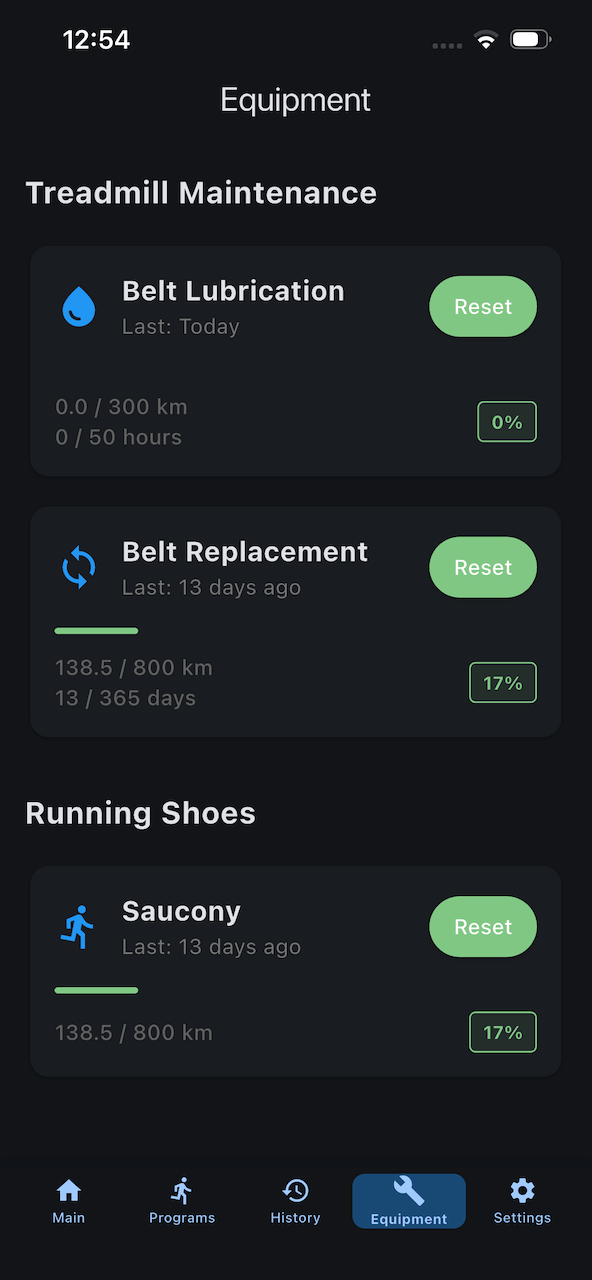
- Tap Equipment tab (wrench icon) in bottom navigation
- View all maintenance items and their status
- See progress bars and overdue warnings
Belt Lubrication
What is It?
Most Treadmill belts require periodic lubrication between the belt and deck to reduce friction.
When to Lubricate
Adjust in Settings based on your treadmill manufacturer's recommendations.
Tracking in App
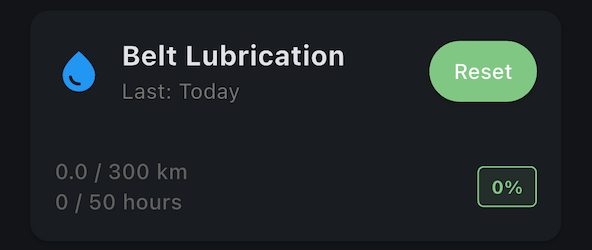
The app shows:
- Distance since last lubrication (km)
- Time since last lubrication (hours)
- Progress bar (visual indicator)
- Warning status (thresholds are configurable in Settings):
- ⚪ Normal (below warning threshold)
- 🟡 Warning (between warning and urgent thresholds)
- 🔴 Urgent (at or above urgent threshold)
- 🔴 OVERDUE (>100%)
How to Lubricate
Consult your treadmill's manual for specific instructions.
Mark as Complete
After lubricating:
- Go to Equipment tab
- Find Belt Lubrication card
- Tap Reset button
- Tracking starts from zero
Belt Replacement
What is It?
Treadmill belts wear out over time and eventually need replacement.
When to Replace
Adjust in Settings based on usage intensity and manufacturer recommendations.
Signs Belt Needs Replacement
- Visible wear, fraying, or cracking
- Belt slipping during use
- Excessive noise
- Uneven running surface
- Intervals reached in app
Tracking in App
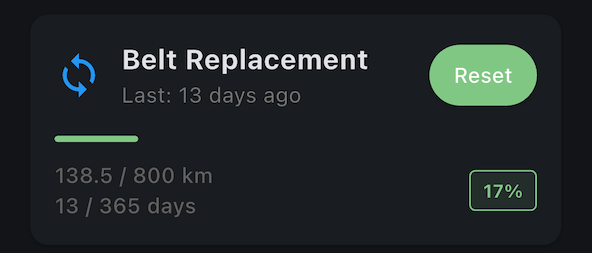
The app shows:
- Distance since last replacement (km)
- Days since last replacement
- Progress bar (visual indicator)
- Warning status (thresholds are configurable in Settings):
- ⚪ Normal (below warning threshold)
- 🟡 Warning (between warning and urgent thresholds)
- 🔴 Urgent (at or above urgent threshold)
- 🔴 OVERDUE (>100%)
How to Replace
Belt replacement is a major maintenance task:
- Order replacement belt (from treadmill manufacturer)
- Follow manufacturer's instructions (usually requires tools)
- Consider professional service if uncomfortable with DIY
This is more complex than lubrication - consider professional help.
Mark as Complete
After replacing belt:
- Go to Equipment tab
- Find Belt Replacement card
- Tap Reset button
- Tracking starts from zero
Maintenance Warnings
Home Screen Warning Card
When maintenance reaches the urgent threshold or is overdue:
- Warning card appears on main workout screen
- Shows which maintenance item needs attention
- Tap card to navigate directly to Equipment screen
Warning Levels
| Status | Progress | Color | Action |
|---|---|---|---|
| Normal | Below warning threshold | White | No action needed |
| Warning | Between warning and urgent | Yellow | Plan maintenance soon |
| Urgent | At or above urgent threshold | Red | Maintenance needed |
| Overdue | >100% | Red "OVERDUE" | Immediate attention required |
By default, warning threshold is 50% and urgent threshold is 80%. You can customize these in Settings (see below).
Dismissing Warnings
Warnings automatically dismiss when you:
- Reset the maintenance item (after completing maintenance)
- Progress returns below the urgent threshold
Cannot manually dismiss without performing maintenance.
Configuring Maintenance Intervals
Adjust Intervals
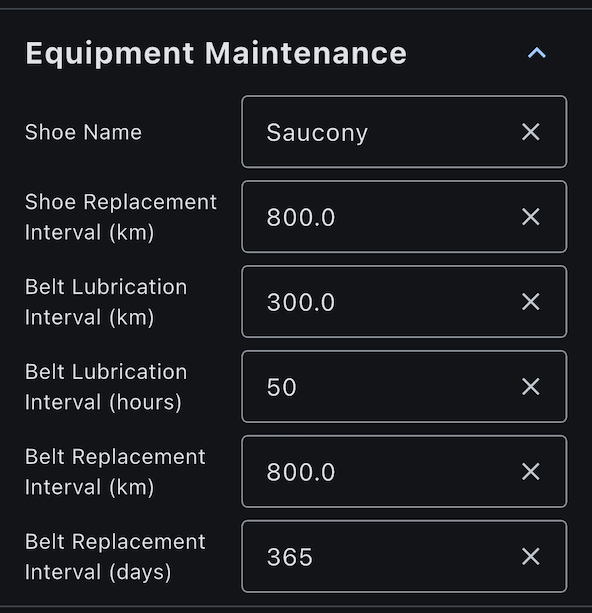
- Go to Settings > Equipment Maintenance
- Find Belt Lubrication section:
- Set Distance Interval (km)
- Set Time Interval (hours)
- Find Belt Replacement section:
- Set Distance Interval (km)
- Set Time Interval (days)
- Changes take effect immediately
Warning
Do not just use the values you see in our example screenshots. Always consult the manufacturer's data to get these values. We cannot be held liable if you do not follow the manufacturer's recommendations.
Configuring Warning Thresholds
You can customize when maintenance warnings appear:
- Go to Settings > Equipment Maintenance
- Find the Warning Thresholds section
- Set Warning Threshold (when progress bar turns yellow):
- Available options: 30%, 40%, 50%, 60%, 70%
- Default: 50%
- Set Urgent Threshold (when home screen warning appears):
- Available options: 70%, 75%, 80%, 85%, 90%, 95%
- Default: 80%
The warning threshold must be less than the urgent threshold. The app enforces this constraint automatically.
Use cases for adjustment:
- Lower thresholds (e.g., 30%/70%): Get earlier reminders if you prefer more advance notice
- Higher thresholds (e.g., 70%/95%): Reduce notification frequency if you find warnings too aggressive
Disabling Tracking
To disable maintenance tracking:
- Set intervals to 0.
Tracking Starts
When Tracking Begins
Tracking starts automatically:
- When you first use the app
- From the date of first workout
- Reset button sets new starting point
Initial Reset
On first use, consider:
- Have you recently lubricated? → Reset lubrication tracker
- Is belt new or old? → Reset replacement tracker accordingly
- Unknown? → Start tracking from day one
Maintenance and Workouts
Maintenance Doesn't Block Workouts
- Warnings are informational only
- Can continue working out even when overdue
- App won't prevent you from starting workouts
However, ignoring maintenance can damage your treadmill!
Tracking Continues
- All workouts count toward maintenance intervals
- Distance and time accumulate automatically
- No manual entry needed
Next Steps
- Track running shoes - Monitor shoe mileage
- Equipment settings - Configure intervals
- Tips for maintenance - Best practices
Treadmill maintenance questions? Check your treadmill's user manual or contact manufacturer support.