Managing Workouts
Learn how to delete, organize, and manage your workout history.
Deleting Workouts
Swipe to Delete
- Open History tab
- Swipe left on any workout card
- Tap Delete button
- Choose deletion scope
Deletion Options
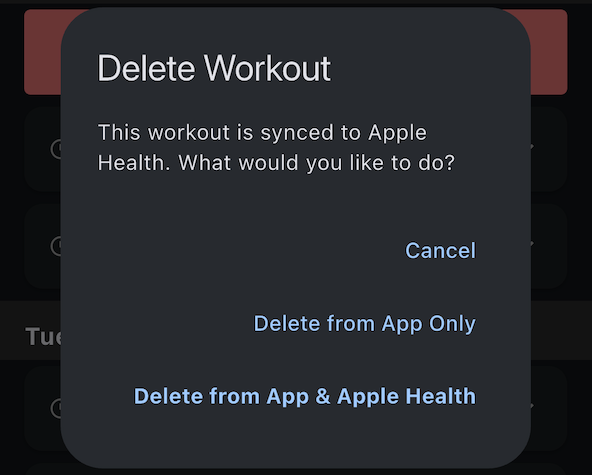
When you delete a workout, you'll be prompted:
Option 1: Delete from App Only
- Removes workout from Treadmill Assistant
- Keeps workout in your health platform
- History entry disappears
- Health data preserved
Use when:
- Cleaning up app history
- Want backup in Health
- Might want data later
Option 2: Delete from App & Health
- Removes workout from Treadmill Assistant
- Removes workout from your health platform
- Completely deleted from both
- Cannot be recovered
Use when:
- Workout was invalid or accidental
- Test data that shouldn't be saved
- Duplicate entries
- Complete removal needed
Cannot Undo
Permanent Deletion
Once deleted, workouts cannot be recovered. If uncertain, choose "Delete from App Only" to keep the health platform backup.
Why Delete Workouts?
Common Reasons
Invalid Workouts:
- Accidentally started workout
- Tested app features
- Treadmill malfunction during workout
Duplicate Entries:
- Manual entry in Health + app entry
Data Cleanup:
- Old workouts no longer relevant
- Privacy reasons
- Fresh start
Cloud Sync and Deletion
Synced Deletions
If cloud sync is enabled:
- Deleting on one device syncs to all devices
- Workout is removed everywhere
- Cloud backup is updated
Health Data Caveat
Health data syncing depends on your platform.
To Delete from All Devices
- App data: Delete once (syncs via cloud)
- Health data: Delete on each device manually if needed
Workout Count Management
Total Workouts Count
At top of History tab:
- Shows total saved workouts
- Updates when workouts added/deleted
- Cannot be manually reset
Resetting Count
To start count from zero:
- Delete all workouts individually
- Or disable/re-enable cloud sync (advanced)
- Or reinstall app (loses all data)
No Bulk Delete
Currently no "delete all" feature. Must delete workouts individually.
Period Summaries
How Deletion Affects Summaries
When you delete workouts:
- Period summaries recalculate automatically
- Weekly/monthly/yearly totals update
- Changes reflect immediately
Example
If you had:
- 5 workouts last week (20km total)
- Delete 2 workouts (8km)
- Weekly summary now shows: 3 workouts, 12km
Organizing Strategies
Use Health Platform Categories
While Treadmill Assistant doesn't have folders/tags, your health platform may:
- View workouts in your health app
- Health apps often have better filtering/search
- Can categorize by date, type, etc.
Regular Cleanup
Maintain a clean history:
- Monthly review of workouts
- Delete test/invalid entries promptly
- Keep only meaningful data
Backup Before Cleanup
Before major deletions:
- Ensure cloud sync is enabled (automatic backup)
- Verify health data is synced
- Consider exporting health data
Data Recovery
If Accidentally Deleted
Unfortunately, there's no "undo" for deletions.
If deleted from app only:
- Workout still in your health platform
- Cannot restore to Treadmill Assistant directly
- Data preserved in Health for your records
If deleted from app & Health:
- Permanently gone
- No recovery possible
- Emphasizes importance of careful deletion
Preventing Accidents
To avoid accidental deletion:
- Be careful when swiping
- Read deletion prompt carefully
- Default to "App Only" if uncertain
- Keep cloud sync enabled for backups
Bulk Operations (Future Feature)
Currently not supported:
- Select multiple workouts
- Delete multiple at once
- Filter by date range for deletion
- Export/import workout data
These features may be added in future versions based on user feedback.
Privacy Considerations
Deleting for Privacy
If sharing device or screenshots:
- Delete personal workout data
- Or use separate user account on device
- Health data is protected by device security
GDPR / Data Requests
To completely remove all data:
- Delete all workouts from app
- Delete workouts from your health platform
- Disable cloud sync
- Reinstall app (optional, clears all local data)
Your data is stored:
- Locally on device
- In your personal cloud storage (if enabled)
- In your health platform (if enabled)
No data is sent to third-party servers.
Next Steps
- View your history - Access workout data
- Understand your stats - Make sense of the numbers
- Cloud Sync - Protect your data
Questions about data management? See the FAQ.