Starting a Workout
Learn the different ways to start and control your treadmill workouts.
Free-Run Mode
The simplest way to work out - manually control your treadmill without a preset program.
Starting a Free-Run Workout
- Connect to your treadmill
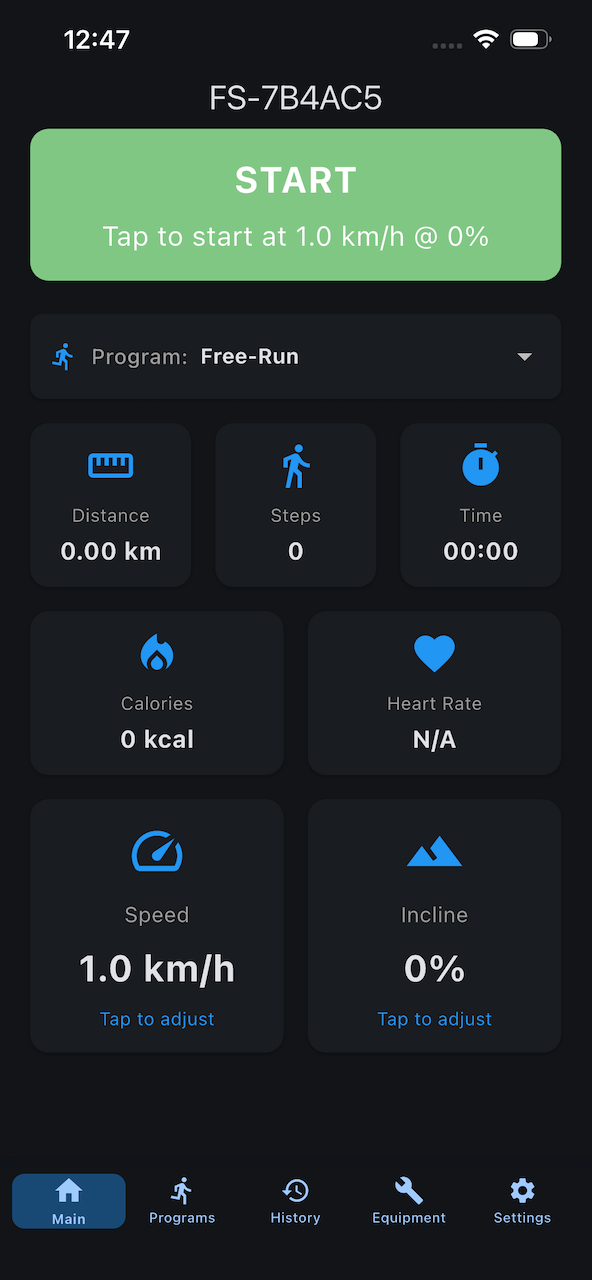
- Ensure "Free-Run" is selected in the program dropdown (default)
- Set your speed and incline using the sliders
- Press the START button
Countdown
After pressing START:
- You'll hear 3 beeps
- The treadmill counts down: 3... 2... 1...
- The belt begins moving at your selected speed
Safety Tip
Step onto the belt sides during countdown, then step onto the moving belt after it starts.
During Your Workout
While running, you can:
- Adjust speed - Tap speed slider, select new speed
- Adjust incline - Tap incline slider, select new incline
- Monitor stats - Watch real-time updates on all stat cards
- Stop workout - Tap STOP button at any time
Ad-Hoc Workouts with Targets
Premium
Ad-hoc workouts with targets require a Premium subscription.
Want to run until you hit a specific goal? Set workout targets!
Setting a Target
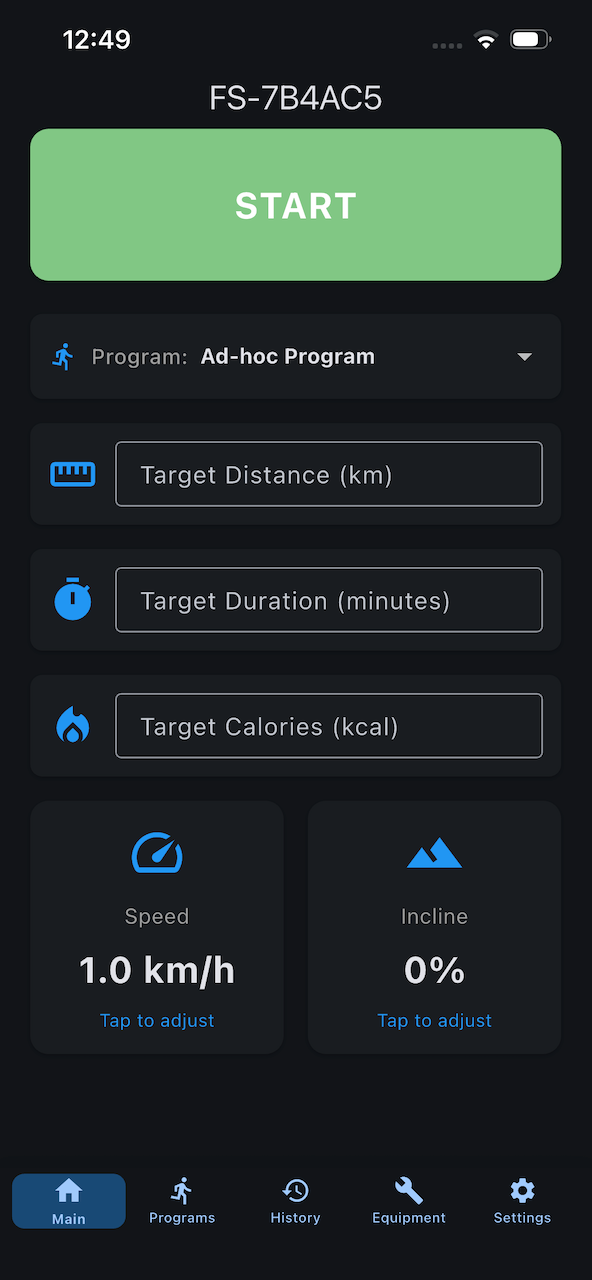
- On the main screen with "Ad-hoc Program" selected
- Choose and enter targets in their respective fields:
- Distance - Run until you reach X kilometers
- Duration - Run for X minutes
- Calories - Burn X calories
- Set your Speed and Incline
- Press START
Auto-Complete
When you reach your target:
- The treadmill automatically stops
- Your workout is saved with target information
- You can view which target was met in History
Multiple Targets
You can set multiple targets simultaneously (e.g., 5km OR 30 minutes). The workout stops when the first target is reached.
Progress Display
During targeted workouts:
- Progress bar shows completion percentage
- Target values display alongside current values
- Closest target highlighted
Program-Based Workouts
Premium
Custom workout programs require a Premium subscription.
Run structured workout programs with automatic speed/incline changes.
Selecting a Program
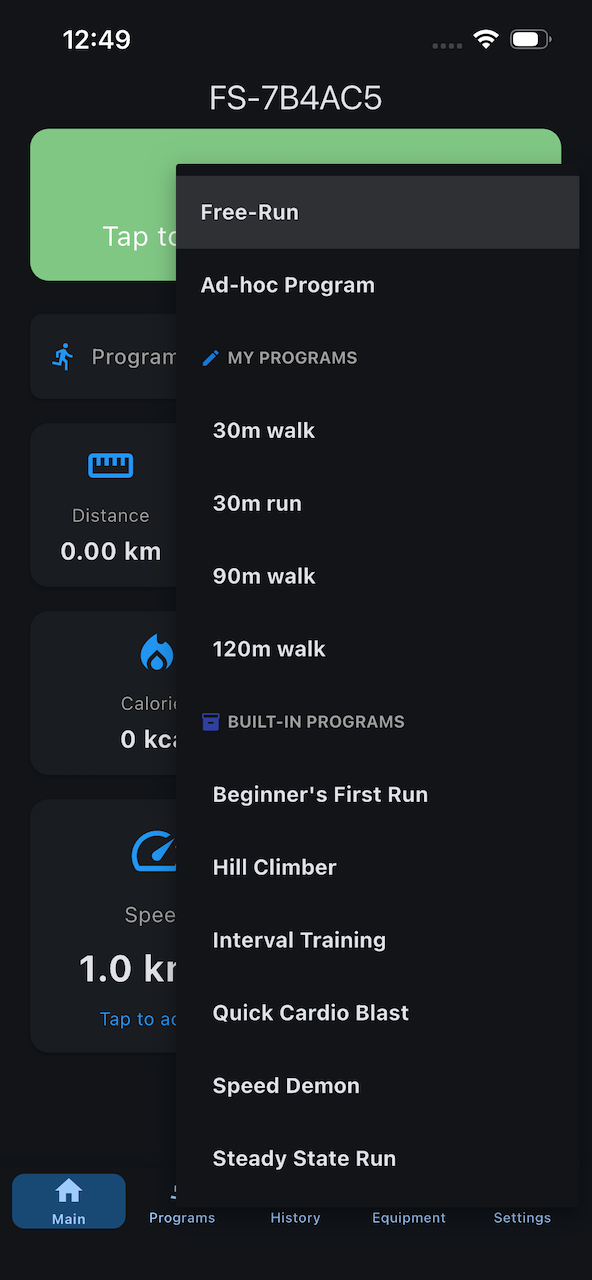
- Tap the program dropdown (shows "Free-Run" by default)
- Browse programs:
- Favorites (if any marked)
- My Programs (your custom programs)
- Tap to select a program
- View program details (segments, duration, etc.)
- Press START to begin
Program Execution
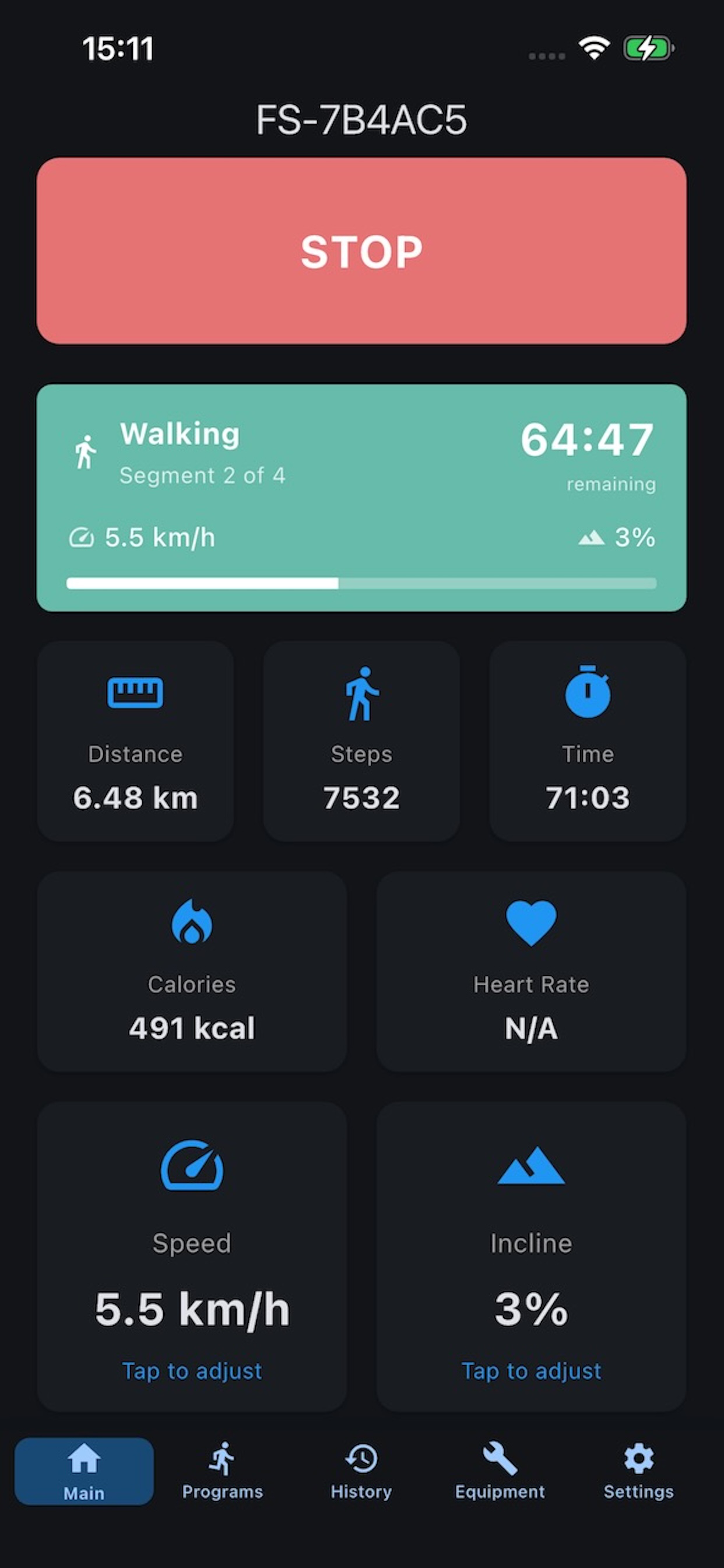
Once started:
- Program automatically progresses through segments
- Speed and incline adjust automatically
- Current segment shown in status card
- Progress indicator shows segment X of Y
For detailed information about programs, see Workout Programs.
Treadmill States
Understanding what each state means:
Idle
- Treadmill is on but not moving
- You can adjust speed/incline settings
- Press START to begin workout
Countdown
- 3-second countdown before belt moves
- You'll hear 3 beeps
- Get ready to step on!
Running
- Belt is moving
- Stats updating in real-time
- You can adjust settings mid-workout
Stopped
- Belt has stopped
- Workout complete and saved
- Stats show final values
Passive Mode
- Treadmill started from its own panel (not via app)
- App monitors but cannot control
- Blue "PASSIVE MODE" indicator shown
Learn more about Passive Mode.
Control Synchronization
The app automatically syncs with your treadmill's current state:
Auto-Sync Speed/Incline
When connected:
- Speed card shows treadmill's current speed
- Incline card shows treadmill's current incline
- Values update automatically if changed on treadmill panel
Manual Panel Control
If you adjust speed/incline on the treadmill panel:
- App controls update to match
- You can continue controlling from app
- No conflicts or override issues
Safety Features
Read-Only Mode
If treadmill control is disabled:
- You can still monitor all stats
- START/STOP buttons are inactive
- Must start treadmill from its panel
- App enters Passive Mode automatically
To enable control: Settings > Treadmill Control
Control Toggle
Even with control enabled, you can quickly disable it:
- Go to Settings > Treadmill Control
- Toggle OFF to return to read-only mode
Stopping a Workout
Three ways to stop:
1. Press STOP Button (App)
- Tap large STOP button in app
- Treadmill stops immediately
- Workout saved automatically
2. Press STOP on Treadmill
- Use treadmill's physical STOP button
- App detects stop and updates
- Workout saved automatically
3. Target Reached (Ad-Hoc)
- For workouts with targets
- Stops automatically when goal met
- Workout saved with target info
Pausing Workouts
Premium
Pause mode requires a Premium subscription.
Take a break mid-workout without losing your progress.
Requirements
- Pause mode enabled in Settings > Treadmill Control
- Program-based workout running (not Free-Run)
To Pause
- Tap the pause button in the program status card
- Treadmill slows to a stop
- Your accumulated stats are preserved
- Screen shows "Tap to resume"
To Resume
- Tap "Tap to resume"
- Workout continues from where you left off
- All stats continue accumulating
Important Notes
- Pause is only available during program workouts
- Paused time is not counted in your workout duration
- Some treadmills may show different readings than the app after resuming
Learn more: Pause Mode
Minimum Workout Duration
Workouts must be at least 15 seconds to be saved to History.
- Shorter workouts are discarded
- Prevents clutter from accidental starts
- All meaningful workouts are preserved
Screen Display
Keep Screen On
Enable this to prevent screen timeout during workouts:
- Settings > Workout Screen Lock
- Toggle Keep Screen On During Workouts ON
Automatic Activation
This setting only activates while a workout is running. Your phone's normal screen timeout applies when idle.
Viewing Last Values
When treadmill is idle:
- Tap any stat card (Speed, Distance, etc.)
- Last workout value displays for 5 seconds
- Helps you remember previous session stats
Next Steps
- Learn about workout programs - Structured training
- Create custom programs - Design your own
- Master real-time controls - Advanced control techniques
Having issues? Check Workout Troubleshooting.