Cloud Sync
Automatically backup your workout data and sync across devices.
What is iCloud Sync?
iCloud Sync backs up your Treadmill Assistant data to your personal iCloud Drive.
What Gets Synced
- ✅ All workouts and their complete history
- ✅ Custom programs you've created
- ✅ Settings and preferences
- ✅ Equipment maintenance tracking
- ✅ Connection history
What Doesn't Sync
- ❌ Apple Health data (device-specific)
- ❌ Active Bluetooth connections
- ❌ Temporary cache
Why Use iCloud Sync?
Benefits
Automatic Backup:
- Never lose workout data
- Survive app reinstalls
- Recover from device failure
Multi-Device Sync:
- Use app on iPad and iPhone
- Data seamlessly syncs between devices
- Always up-to-date everywhere
No Extra Account:
- Uses your existing Apple ID
- No third-party services
- No additional sign-up
Enabling iCloud Sync
Prerequisites
- Signed into iCloud on your iPhone
- iCloud Drive enabled (Settings > [Your Name] > iCloud > iCloud Drive)
- Sufficient iCloud storage space (usually <5 MB needed)
Enable Sync
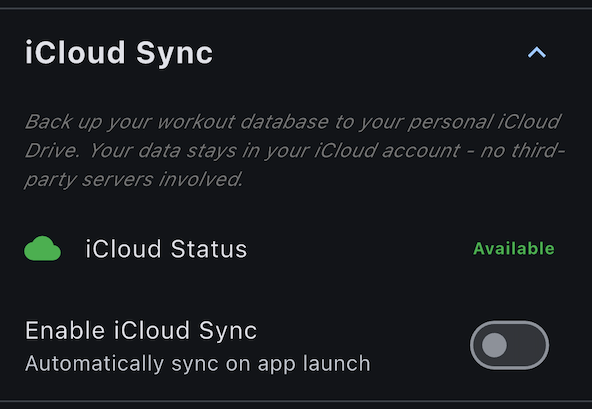
- Go to Settings > iCloud Sync
- Toggle Enable iCloud Sync ON
- App begins first sync automatically
First Sync
On first enable:
- All local data uploads to iCloud
- Takes 5-30 seconds depending on data amount
- "Last Synced" timestamp updates when complete
- Status indicator shows sync progress
How Syncing Works
Automatic Syncing
With iCloud enabled:
- App launches: Syncs on startup
- Data changes: Syncs after workouts, program edits, etc.
- Periodic: Syncs every few minutes in background
- Seamless: Happens automatically, no action needed
Manual Syncing
To force an immediate sync:
- Go to Settings > iCloud Sync
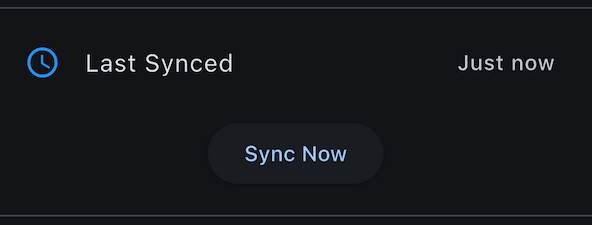
- Tap Sync Now button
- Wait for "Last Synced" to update
Sync Status
Last Synced Timestamp
Shows when last successful sync occurred:
- "Just now" - Synced in last minute
- "X minutes ago" - Recent sync
- "X hours ago" - May want to force sync
- "Never" - Hasn't synced yet or error occurred
Sync Indicator
When syncing:
- Loading spinner appears
- Status shows "Syncing..."
- Completes in a few seconds
Syncing Across Devices
Setting Up Multiple Devices
On Device 1 (original device):
- Enable iCloud Sync
- Data uploads to iCloud
On Device 2 (new device):
- Sign in with same Apple ID
- Install Treadmill Assistant
- Enable iCloud Sync
- Data downloads from iCloud automatically
How It Works
- First device to sync: Uploads local data
- Subsequent devices: Download cloud data
- Ongoing: Changes sync bidirectionally
- Conflicts: Newer data wins (by timestamp)
Conflict Resolution
If same workout edited on two devices:
- Most recent change is kept
- Older change is discarded
- Automatic and seamless
Privacy and Security
Where Data is Stored
- Your personal iCloud Drive account
- Folder:
Treadmill Assistant(may be hidden) - Only you have access
- Protected by Apple ID password/2FA
What's NOT Sent to Third Parties
Anything - we don't process your data at all.
- ✅ Data stays in your iCloud
- ✅ No external servers
- ✅ No company access to your data
- ✅ Fully private
Encryption
- Data encrypted in transit (HTTPS)
- Data encrypted at rest (iCloud standard encryption)
- Protected by Apple's security
Managing iCloud Storage
How Much Space Needed?
Typical usage:
- Empty app: <1 MB
- 100 workouts: ~2 MB
- 1000 workouts: ~10-15 MB
- Programs/settings: <1 MB
Very minimal - won't significantly impact iCloud storage.
Checking iCloud Storage
- Open iOS Settings
- Tap [Your Name]
- Tap iCloud
- View storage breakdown
Treadmill Assistant appears under "Other Apps".
If Storage Full
If iCloud storage is full:
- Sync will fail
- App notifies you
- Upgrade iCloud plan or free up space
- App continues working locally
Disabling iCloud Sync
Turn Off Sync
- Go to Settings > iCloud Sync
- Toggle Enable iCloud Sync OFF
- Choose what happens to cloud data:
- Keep in iCloud - Preserve backup
- Delete from iCloud - Remove cloud data

After Disabling
- Local data remains on device
- Cloud data kept or deleted based on choice
- Other devices with sync enabled unaffected
- Can re-enable anytime
Re-Enabling Sync
If you disable then re-enable:
Scenario 1: Cloud Data Exists
- App downloads cloud data
- Merges with local data
- Newer data wins
Scenario 2: Cloud Data Deleted
- App uploads current local data
- Creates new cloud backup
- Other devices sync to this data
Troubleshooting iCloud Sync
"Not Signed Into iCloud"
Problem: App says not signed into iCloud
Solution:
- Open iOS Settings
- Tap Sign in to your iPhone at top
- Sign in with Apple ID
- Return to app and enable sync
"iCloud Drive Disabled"
Problem: iCloud Drive is turned off
Solution:
- iOS Settings > [Your Name] > iCloud
- Toggle iCloud Drive ON
- Return to app and enable sync
Sync Never Completes
Problem: "Syncing..." never finishes
Solutions:
- Check internet connection (sync needs network)
- Check iCloud storage not full
- Force quit and reopen app
- Disable/re-enable iCloud Sync
Last Synced Shows Old Timestamp
Problem: "Last Synced" is hours or days old
Solutions:
- Tap Sync Now to force sync
- Check internet connection
- Verify iCloud is working (test with other apps)
- Restart iPhone
Data Not Syncing to Second Device
Problem: Changes on Device 1 don't appear on Device 2
Solutions:
- Verify both devices signed into same Apple ID
- Check iCloud Sync enabled on both devices
- Force sync on Device 1 (Sync Now)
- Open app on Device 2 (triggers download)
- Wait a few minutes for propagation
iCloud Storage Full Error
Problem: "iCloud storage full" message
Solutions:
- Free up iCloud space (delete photos, backups, etc.)
- Upgrade iCloud plan (Settings > [Your Name] > iCloud > Manage Storage)
- App continues working locally without sync
iCloud vs Apple Health
These are separate:
iCloud Sync (Treadmill Assistant)
- Backs up app data
- Syncs across devices
- Managed by this app
Apple Health
- Device-specific workout storage
- Does NOT sync via iCloud (Apple's limitation)
- Each device has separate Health database
Both can be used together for comprehensive backup.
Best Practices
Recommendations
- Enable iCloud Sync - Free backup, why not?
- Check sync status occasionally
- Don't disable unless needed - Automatic protection
- Use multiple devices - Seamless experience
What to Avoid
- ❌ Don't disable/re-enable frequently (can cause conflicts)
- ❌ Don't delete iCloud data unless certain
- ❌ Don't sign out of iCloud without backing up data first
What is Google Drive Sync?
Google Drive Sync backs up your Treadmill Assistant data to your personal Google Drive account.
What Gets Synced
- ✅ All workouts and their complete history
- ✅ Custom programs you've created
- ✅ Equipment maintenance tracking
What Doesn't Sync
- ❌ Health Connect data (device-specific)
- ❌ Active Bluetooth connections
- ❌ Temporary cache
Why Use Google Drive Sync?
Benefits
Automatic Backup:
- Never lose workout data
- Survive app reinstalls
- Recover from device failure
Uses Your Google Account:
- No extra account needed
- Sign in with Google when prompted
- No additional sign-up
Enabling Google Drive Sync
Prerequisites
- A Google account on your Android device
- Internet connection for initial sync
Enable Sync
- Go to Settings > Google Drive Sync
- Tap to enable sync
- Sign in with your Google account when prompted
- App begins first sync automatically
First Sync
On first enable:
- All local data uploads to Google Drive
- Takes a few seconds depending on data amount
- "Last Synced" timestamp updates when complete
How Syncing Works
Automatic Syncing
With Google Drive Sync enabled:
- App launches: Syncs on startup
- Data changes: Syncs after workouts, program edits, etc.
- Seamless: Happens automatically, no action needed
Manual Syncing
To force an immediate sync:
- Go to Settings > Google Drive Sync
- Tap Sync Now button
- Wait for "Last Synced" to update
Conflict Resolution
If the same data is changed on multiple devices:
- Most recent change is kept (newest wins)
- Automatic and seamless
Privacy and Security
Where Data is Stored
- Data is stored in your Google Drive App Data folder
- This folder is hidden and only accessible by Treadmill Assistant
- Only you have access via your Google account
- No other apps or people can see this data
What's NOT Sent to Third Parties
- ✅ Data stays in your Google Drive
- ✅ No external servers beyond Google Drive
- ✅ No third-party access to your data
- ✅ Fully private
Storage
The data synced is minimal (typically a few MB at most). This won't significantly impact your Google Drive storage.
Disabling Google Drive Sync
Turn Off Sync
- Go to Settings > Google Drive Sync
- Disable sync
- Local data remains on your device
After Disabling
- New workouts won't sync to Google Drive
- App continues working normally
- Can re-enable anytime
Troubleshooting Google Drive Sync
Sign-In Issues
Problem: Can't sign in with Google account
Solution:
- Check internet connection
- Verify your Google account works in other apps
- Try removing and re-adding your Google account in Android Settings
- Restart the app
Sync Not Working
Problem: Data isn't syncing after enabling
Solutions:
- Check internet connection
- Tap Sync Now to force a sync
- Disable and re-enable Google Drive Sync
- Restart the app
Next Steps
- Apple Health sync - Separate but complementary
- Backup and restore - Protection strategies
Sync not working? Check Sync Troubleshooting.