Real-Time Controls
Master the speed and incline controls to fine-tune your workout.
Speed Control
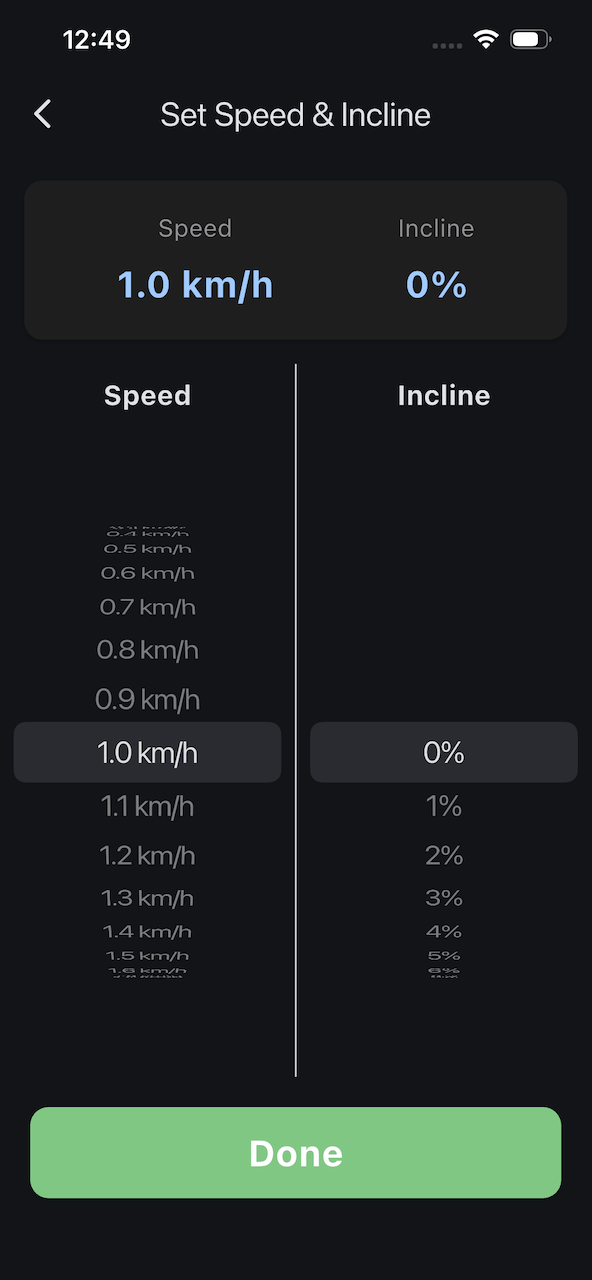
Opening the Speed Picker
- Tap the Speed slider on the main screen
- iOS-style picker wheel appears
- Current speed is highlighted
Adjusting Speed
- Scroll the picker wheel up/down
- Select your desired speed
- Tap outside the picker to close
Speed Increments
- Range: 0-Treadmill allowed max speed
- Increments: 0.1 km/h
- Precise control for your exact pace
Auto-Sync
The speed picker automatically syncs with your treadmill:
- If treadmill speed changes (via panel), picker updates
- Always shows current treadmill speed
- No conflicts or overrides
Incline Control
Opening the Incline Picker
- Tap the Incline slider on the main screen
- iOS-style picker wheel appears
- Current incline is highlighted
Adjusting Incline
- Scroll the picker wheel up/down
- Select your desired incline
- Tap outside the picker to close
Incline Increments
- Range: 0-Treadmill max allowed incline
- Increments: 1%
- Full range of incline adjustment
Treadmill Capabilities
Actual range depends on your treadmill. Some models may support different ranges. Check Settings > About to see your treadmill's capabilities.
Adjusting During Workout
You can change speed and incline anytime during a workout:
Mid-Workout Adjustments
- Workout is running
- Tap speed or incline card
- Select new value
- Hit Done
- Treadmill updates immediately
No need to stop - adjust on the fly!
Gradual Changes
When making large changes:
- Treadmill may ramp gradually (depends on treadmill model)
- Not all treadmills support instant jumps
- Allow a few seconds for changes to take effect
Safety Considerations
When adjusting during workout:
- Hold handrails when changing speed
- Make gradual incline changes
- Don't make drastic speed increases while running
- Test new settings at lower speeds first
Control Modes
App Control (Active)
When treadmill control is enabled:
- ✅ Adjust speed via app
- ✅ Adjust incline via app
- ✅ Start/stop via app
- ✅ Full program execution
To enable: Settings > Treadmill Control → Toggle ON
Read-Only Mode
When treadmill control is disabled:
- ❌ Cannot adjust speed
- ❌ Cannot adjust incline
- ❌ Cannot start/stop
- ✅ Can view all stats in real-time
Useful for:
- Safety concerns
- Monitoring-only scenarios
- Using treadmill panel exclusively
Passive Mode
When treadmill is started manually from its panel:
- ❌ Cannot send commands (treadmill's in control)
- ✅ Stats monitored in real-time
- 🔵 "PASSIVE MODE" button shown
Learn more: Passive Mode
Control Synchronization
Two-Way Sync
Controls sync bidirectionally:
- App → Treadmill: Changes in app update treadmill
- Treadmill → App: Changes on panel update app
No Conflicts
If you adjust on the treadmill panel:
- App detects change immediately
- Sliders update to match
- You can continue using app controls
- No "who's in charge" conflicts
This allows seamless switching between app and panel control.
START/STOP Button
Button Location
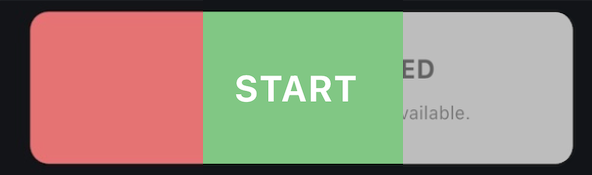
Large, prominent button at the top of the main screen.
- Green START when idle
- Red STOP when running
Starting
- Tap START button
- 3-second countdown (3 beeps)
- Belt begins moving
Stopping
- Tap STOP button (anytime during workout)
- Belt stops immediately
- Workout auto-saved (if ≥15 seconds)
Button States
The button changes based on treadmill state:
- Idle → Green "START"
- Countdown → Orange "3... 2... 1..."
- Running → Red "STOP"
- Passive Mode → Gray "PASSIVE MODE" (read-only)
Program Control
Automatic Control
When running a program:
- Speed adjusts automatically per segment
- Incline adjusts automatically per segment
- You can manually override during program
- Can still STOP at any time
Control Limitations
Read-Only Scenarios
Controls disabled when:
- Treadmill control toggle is OFF (Settings)
- Treadmill started from panel (Passive Mode)
- Not connected to treadmill
Hardware Limitations
Some treadmills may:
- Have different speed/incline ranges
- Ramp speed gradually (not instant changes)
- Have maximum speed limits when inclined
- Require belt to be moving for incline changes
Check your treadmill's manual for specific limitations.
Tips for Effective Control
Start Conservative
When trying new speeds/inclines:
- Start lower than you think
- Gradually increase
- Get comfortable before going harder
Use Presets
For frequently used settings:
- Create programs with your favorite configs
- Save time adjusting
- Consistency in training
Know Your Limits
Before adjusting:
- Know your comfortable speed range
- Test inclines at walking pace first
- Don't jump from 6 to 12 km/h instantly
Combine Speed and Incline
For effective workouts:
- Higher incline = lower speed
- Flat running = higher speeds
- Vary both for interval training
Monitor Heart Rate
When adjusting intensity:
- Watch heart rate response
- Stay in target zones
- Allow 30-60s for HR to stabilize
STOP IF SOMETHING DOES NOT FEEL RIGHT
When using the app or in general using the device you feel something is not right - stop the workout immediately. Don't risk your health and wellbeing.
Troubleshooting Controls
Controls Not Responding
Problem: Tapping sliders does nothing
Solutions:
- Check treadmill control is enabled (Settings > Treadmill Control)
- Verify treadmill is connected
- Ensure not in Passive Mode
- Restart app if frozen
Speed/Incline Won't Change
Problem: Select new value but treadmill doesn't change
Solutions:
- Wait 3-5 seconds (some treadmills are slow)
- Check connection status
- Verify treadmill isn't at physical limit
- Try stopping and restarting workout
Values Jumping Around
Problem: Speed/incline shows unstable values
Solutions:
- Check for interference (other Bluetooth devices)
- Move phone closer to treadmill
- Check treadmill isn't malfunctioning
- Reconnect to treadmill
Next Steps
- Understand passive mode - When treadmill controls itself
- Create programs - Automate speed/incline changes
- View workout stats - Analyze your performance
Having control issues? Check Troubleshooting.